
social-media
tutorial
How to View Blocked Facebook Friends (2026 Quick Guide)

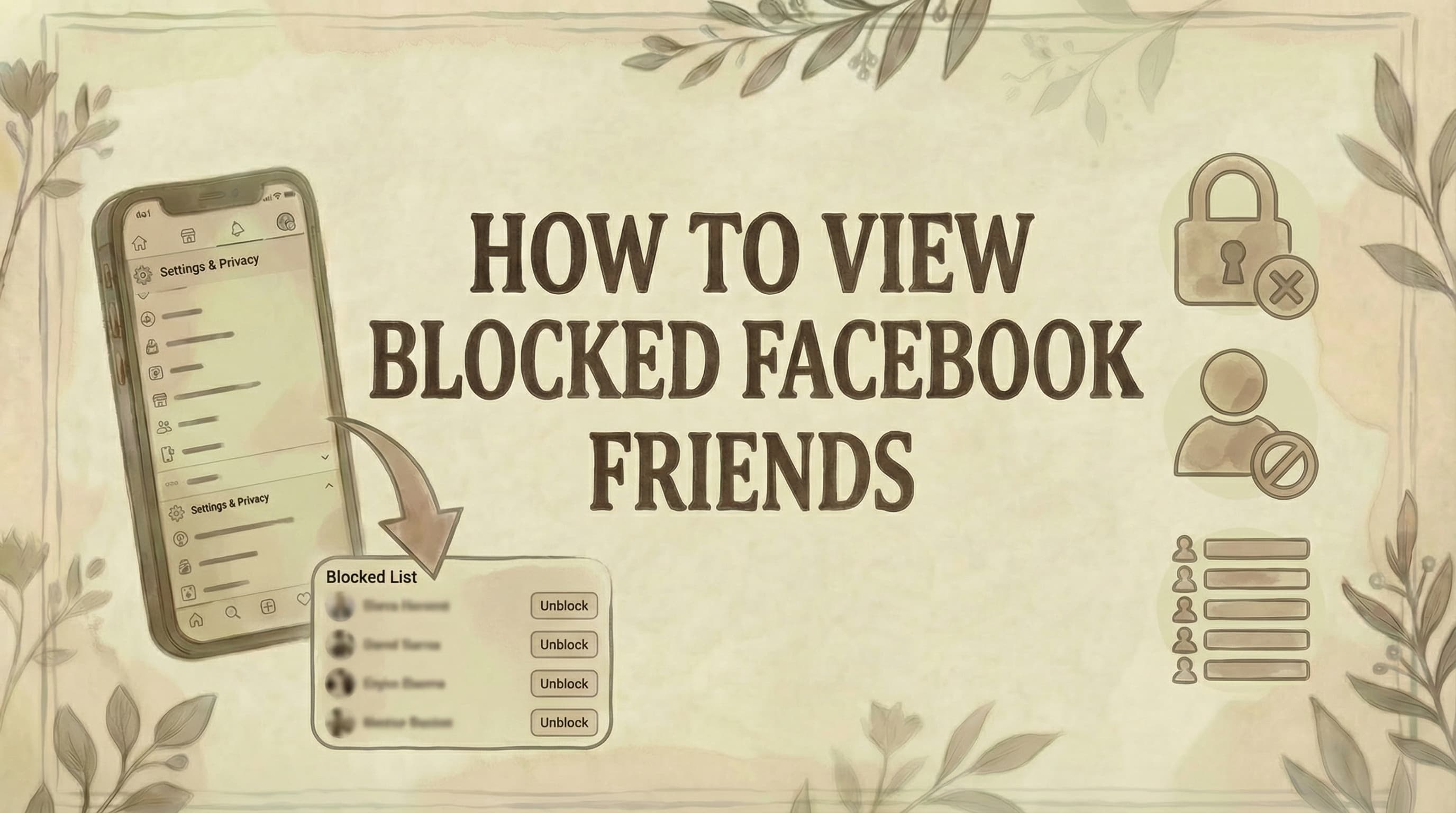
- Your full blocked list is at Settings and Privacy - Settings - Blocking - "See your blocked list" (or go directly to facebook.com/settings?tab=blocking).
- Blocked users are not notified - they simply can't find you, message you, or tag you. Old message threads stay visible on both sides but no new messages can be sent.
- After unblocking someone, you cannot re-block them for 48 hours, and you're automatically unfriended - a new friend request is needed to reconnect.
Your Facebook blocked list is tucked inside account settings - here's exactly where to find it, how to manage it, and what blocking actually does on both sides.
Desktop: How to View Blocked Friends
Step 1: Go to facebook.com
- Log in to your account
Step 2: Click your profile picture
- Located in top-right corner
Step 3: Click "Settings & Privacy"
- Appears in dropdown menu
Step 4: Click "Settings"
- Note: If you need to change your name, see how to change name on Facebook
- To update your email address, see how to change email on Facebook
Step 5: Click "Blocking" in left sidebar
- Under "Audience and Visibility" section
- Or scroll down to find it
Step 6: Click "See your blocked list"
- Under "Block users" section
Done. You'll see all people you've blocked.
Quick link: You can also go directly to: facebook.com/settings?tab=blocking
Mobile: How to View Blocked Friends
On iPhone/iOS:
Step 1: Open Facebook app
- Log in if needed
Step 2: Tap menu icon (☰)
- Located in bottom-right corner
- Three horizontal lines
Step 3: Scroll down and tap "Settings & Privacy"
Step 4: Tap "Settings"
Step 5: Scroll to "Audience and Visibility"
Step 6: Tap "Blocking"
Done. Your blocked list appears here.
On Android:
Step 1: Open Facebook app
Step 2: Tap menu icon (☰)
- Top-right corner (three horizontal lines)
Step 3: Tap "Settings & Privacy"
Step 4: Tap "Settings"
Step 5: Find "Audience and Visibility"
Step 6: Tap "Blocking"
Done. All blocked users display.
What You'll See in Your Blocked List
Your blocked list shows:
- Full names of blocked people
- Profile pictures (small thumbnails)
- "Unblock" button next to each name
- "Add to blocked list" option at top
Note: The list is private-only you can see it. No one else knows who you've blocked.
How to Unblock Someone
Step 1: Find the person in your blocked list
- Follow steps above to access blocked list
Step 2: Click/tap "Unblock" next to their name
Step 3: Confirm by clicking "Unblock" again
- Facebook asks you to confirm
Done. They're unblocked immediately.
Important restrictions after unblocking:
- You cannot re-block them for 48 hours
- You're automatically unfriended (not re-friended)
- You must send a new friend request to reconnect
- They can now message you and see your public posts
What Happens When You Block Someone?
They CANNOT: ❌ See your profile, posts, or timeline ❌ Send you friend requests ❌ Send you messages on Messenger ❌ Tag you in posts, photos, or comments ❌ Find you in Facebook search ❌ See you in mutual friends' lists ❌ Invite you to events or groups
You CANNOT: ❌ See their profile or posts ❌ Message them ❌ Tag them ❌ Find them in search
What REMAINS: ✓ Old message threads (visible but can't reply) ✓ Past comments on mutual friends' posts (visible) ✓ You're both automatically unfriended
Privacy note: Facebook does NOT notify them you blocked them. For additional privacy protection, learn how to lock your Facebook account.
Other Blocking Options on Facebook
Besides blocking users, Facebook offers other blocking features:
1. Block Messages (Messenger)
- Block someone only on Messenger
- They can still see your profile
- Found in: Blocking settings → "Block messages"
2. Block App Invites
- Stop receiving game/app invites from specific people
- Found in: Blocking settings → "Block app invites"
3. Block Event Invites
- Block event invitations from certain people
- Found in: Blocking settings → "Block event invites"
4. Block Pages
- Block specific Facebook Pages
- Found in: Blocking settings → "Block Pages"
- For managing Page access, see how to add admin to Facebook Page
5. Restricted List
- Different from blocking
- They remain friends but can't see your posts
- Found in: Privacy settings → "Restricted list"
Blocked vs. Unfriended vs. Restricted
Understanding the differences:
Blocked:
- Most restrictive
- Can't see each other at all
- Automatically unfriended
- No interaction possible
Unfriended:
- Medium restriction
- They can still see your public posts
- They can send friend requests
- You can still message (if settings allow)
Restricted:
- Least restrictive
- Still friends on Facebook
- They only see your public posts
- You remain connected
Common Issues and Solutions
Problem: "Can't find Blocking in settings"
Solutions:
- Update Facebook app to latest version
- Look under "Audience and Visibility" section
- Try desktop instead of mobile
- Use direct link: facebook.com/settings?tab=blocking
Problem: "Blocked list is empty but I know I blocked someone"
Possible reasons:
- You restricted them instead of blocking
- You blocked them on Messenger only (different list)
- They deactivated/deleted their account
- You unfriended instead of blocked
Check:
- Restricted list (in Privacy settings)
- Block messages list (in Blocking settings)
Problem: "Can't unblock someone"
Solutions:
- Wait 48 hours if you recently unblocked them
- Clear app cache/cookies
- Update Facebook app
- Try from desktop instead
Problem: "Person still appears after unblocking"
Explanation:
- Unblocking is instant
- BUT you're still unfriended
- They must accept a new friend request
- They can now see your public posts only
Tips for Managing Your Blocked List
Regular review: ✓ Check blocked list every 3-6 months ✓ Unblock people if circumstances changed ✓ Remove accidental blocks
Before blocking:
- Consider unfriending or restricting first
- Remember: can't re-block for 48 hours after unblocking
- Blocking is very visible to the blocked person
Privacy tip:
- Blocking is private (they won't get notified)
- BUT they'll notice they can't find you
- They'll see message delivery fails
Alternatives to blocking:
- Unfollow - Stop seeing their posts, stay friends
- Restrict - Limit what they see, stay friends
- Unfriend - Remove friendship, they can still see public posts
- Manage post visibility - Learn where to find scheduled posts on Facebook to control when content appears
- Find drafts - For locating saved draft posts, see how to find drafts on Facebook
Common Questions
How do I know if someone blocked me on Facebook? You can't find their profile in search, can't message them, and mutual friends may not show them. However, they might have deactivated their account instead.
Can I see who blocked me on Facebook? No. Facebook doesn't provide a feature to see who blocked you. It's intentionally private.
Will someone know if I view their profile after unblocking them? No. Facebook doesn't notify users about profile views, whether blocked or not.
Can I block someone without unfriending them first? Yes, but blocking automatically unfriends them. There's no way to block and stay friends.
How many people can I block on Facebook? There's no official limit, but blocking thousands of people may affect account performance.
Can blocked people still see old messages? Yes. Message history remains visible to both people, but no new messages can be sent.
Will blocking someone delete our message history? No. Messages remain in both people's Messenger, but you can't send new ones.
If I block someone, will their comments on mutual friends' posts disappear? No. Past comments remain visible on mutual friends' posts. Future comments won't be visible to each other. For commenting options, see how to comment anonymously on Facebook.
Can I block someone temporarily? Not officially, but you can unblock after any period. Remember: 48-hour restriction before re-blocking.
What happens to photos they tagged me in? Tags are removed when you block someone. Photos remain but without your tag.
The Bottom Line
Viewing your blocked friends on Facebook is simple:
Desktop: Settings & Privacy → Settings → Blocking → "See your blocked list" Mobile: Menu (☰) → Settings & Privacy → Settings → Blocking
Key reminders:
- Your blocked list is private (only you can see it)
- Unblocking is instant but you can't re-block for 48 hours
- Blocking automatically unfriends both of you
- Blocked people are NOT notified when you block them
Review your blocked list periodically to ensure you haven't accidentally blocked someone or to give people a second chance. Blocking is a powerful privacy tool-use it wisely. For monetizing your presence, see how to make money with Facebook. For tracking engagement on your posts, see how to see who shared my post on Facebook.
Free Facebook Tools
- Facebook Hashtag Generator - boost your post reach
- Facebook Character Counter - stay within optimal post lengths
- Facebook Line Breaker - format posts for readability
Managing privacy across multiple social media platforms? Genviral's Facebook Scheduler helps you schedule content, manage interactions, and maintain your online presence - all while keeping your digital boundaries in check.

Viktor
Occasional writer, sometimes even funny. Also loves to start conmpanies (weird, I know).


