
social-media
tutorial
How to See Who Shared My Post on Facebook (2026 Guide)

- Click the share count number (e.g. "5 Shares") below your post to see who shared it - but only people who shared publicly and whose privacy settings allow it will appear.
- Many shares are hidden by Facebook's privacy system: friends-only shares, private group shares, and Messenger shares all count toward the total number but won't show individual names.
- The share count shown is always accurate (includes all shares), but the name list is always incomplete due to privacy restrictions - there's no way to see 100% of sharers.
You can see who shared your Facebook post, but Facebook's privacy system means the list is always incomplete. Here's how to check - and exactly what the share count does and doesn't show you.
Understanding Facebook Share Visibility
Before learning how to check, you need to understand what Facebook will and won't show you.
What you CAN see:
- ✅ Total number of shares (all shares counted)
- ✅ Names of people who shared publicly
- ✅ Public shares from friends
- ✅ Shares visible based on mutual privacy settings
What you CANNOT see:
- ❌ People who shared to "Friends Only"
- ❌ Shares in private groups you're not in
- ❌ Shares via Messenger (doesn't count as a share)
- ❌ Shares to custom audiences that exclude you
- ❌ Shares from people who blocked you
- ❌ Shares to Stories (tracked separately)
The critical point: If your post shows "20 Shares" but you only see 4 names, this is completely normal. The other 16 people shared privately, and Facebook protects their privacy.
Why Share Counts and Visible Names Don't Match
This is the #1 source of confusion. Here's exactly how it works:
The Share Count Includes:
- Public shares
- Friends-only shares
- Custom audience shares
- Group shares (public and private)
- Story shares (sometimes)
Total: All shares, regardless of privacy
The Visible Names Show:
- ONLY public shares
- ONLY shares where you're in the audience
- ONLY shares from non-blocked users
Result: Usually 20-40% of total shares
Example Scenario:
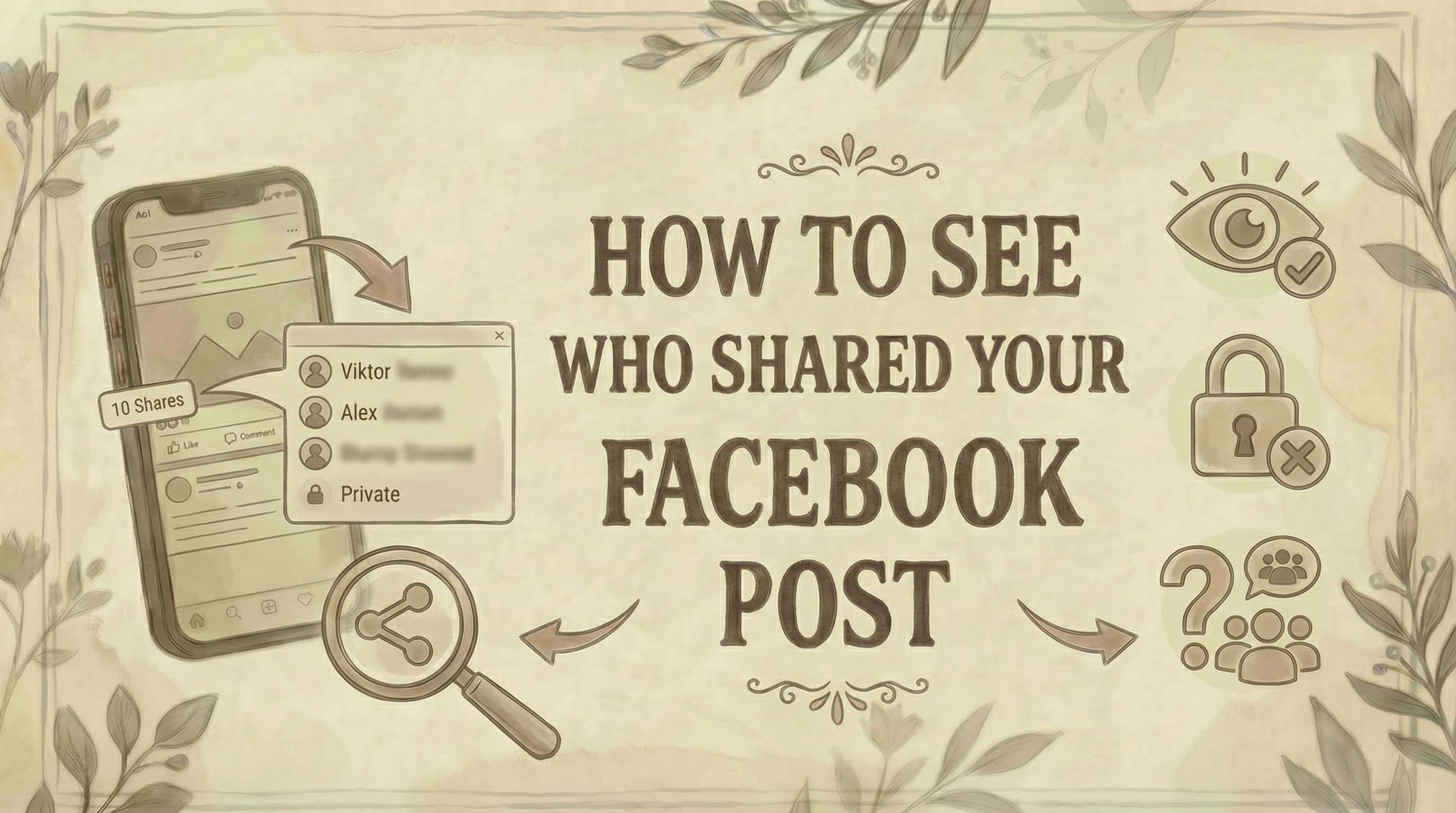
Your post has 10 shares:
- 2 people shared publicly → You can see their names
- 5 people shared to "Friends" → Hidden from you
- 2 people shared in a private group → Hidden from you
- 1 person sent via Messenger → Doesn't count, so actually 9 shares
You see: "9 Shares" with only 2 names visible.
This is normal. Facebook prioritizes user privacy over share transparency.
How to See Who Shared Your Post (Desktop)
Desktop works for personal profile posts, but the UI is inconsistent and often does not show a sharers list at all - especially on Page posts and in Facebook's newer UI rollouts. If desktop fails, jump to the mobile method below.
Method 1: Click Share Count (Personal Profile Posts)
Step 1: Go to Facebook.com
- Log into your account
- Navigate to your profile or timeline
Step 2: Find Your Post
- Scroll to locate the post
- Or use search to find older posts
Step 3: Look Below the Post
- You'll see engagement metrics
- Look for the number next to the curved arrow icon
- Example: "7 Shares"
Step 4: Click the Share Number (not the icon)
- Click directly on the "7 Shares" text, not the arrow icon
- Clicking the arrow icon opens the "share this post yourself" menu instead - that is not what you want
- If the share count isn't separately clickable in your UI variant, this method won't work - use mobile
Step 5: View the List
- See names and profile pictures
- See when they shared
- See any comment they added
If nothing appears or only the share menu opens:
- You may be on a UI variant where the share count is not clickable on desktop
- The post is a Page post - desktop does not expose a sharers list for Page posts; use Meta Business Suite or mobile
- All shares were private (Friends-only, group, Messenger)
- The post has no public shares yet
Method for Page Admins: Meta Business Suite
If the post is from a Facebook Page (you see "Boost post" or "See insights and ads" under it), the desktop post UI will not show you a sharers list. Use Business Suite instead:
- Step 1: Go to business.facebook.com and select your Page
- Step 2: Open Content → find the post
- Step 3: Open the post's insights and look for the Shares breakdown
- Note: You'll still only see public sharers; private shares remain hidden by Facebook
Method 2: Check Notifications
Step 1: Click the Bell Icon
- Located at the top of Facebook
- Opens your notifications panel
Step 2: Look for Share Notifications
- Scroll through recent notifications
- Look for "[Name] shared your post"
- Click "See All" for older notifications
Step 3: Click the Notification
- Takes you to their shared version
- Shows any comments they added
Note: Only public shares generate notifications.
Method 3: Check Email Notifications
If email notifications are enabled:
- Step 1: Open your email inbox
- Step 2: Search for "Facebook" or "shared"
- Step 3: Look for share notification emails
- Step 4: Click to see details
How to See Who Shared Your Post (Mobile)
The process is nearly identical on iPhone and Android - and in many cases mobile is more reliable than desktop for surfacing the sharers list.
On iPhone:
Step 1: Open Facebook App
- Launch the app
- Ensure you're logged in
Step 2: Go to Your Profile
- Tap the menu icon (three lines) in bottom-right
- Tap your name/profile picture
Step 3: Find the Post
- Scroll through your timeline
- Or use search to find it
Step 4: Tap Share Count
- Below the post, tap the share number
- Example: "12 Shares"
Step 5: View Who Shared
- List appears with visible sharers
- Swipe to see all names
If blank screen:
- All shares are private
- Privacy restrictions
- App bug (update app)
On Android:
Step 1: Open Facebook App
Step 2: Navigate to Profile
- Tap menu (three lines) in top-right
- Tap your profile picture
Step 3: Locate Post
- Find the specific post
Step 4: Tap Share Count
- Tap the number next to share icon
Step 5: See List
- View public sharers
- Scroll if multiple
Check Notifications (Mobile):
Step 1: Tap the bell icon Step 2: Scroll through notifications Step 3: Look for "[Name] shared your post" Step 4: Tap to view details
How to See Who Shared Your Facebook Page Post
If you manage a Facebook Page, you have additional options.
Method 1: Click Share Count (Same as Personal Posts)
- Go to your Page
- Find the post
- Click share count
- View public sharers
Method 2: Use Meta Business Suite
Step 1: Go to business.facebook.com
- Sign in with your account
- Select your Page
Step 2: Click "Content" in Left Sidebar
Step 3: Select Your Post
- Choose the post you want to check
- Or filter by date range
Step 4: View Share Data
- See total shares
- Click for breakdown
- View public sharers
Step 5: Check Insights
- See share demographics
- View share trends over time
- Compare to other posts
What Page Insights Show:
- Total share count
- Demographics (age, gender, location)
- Share trends
- Still doesn't show: Private sharer names
How to Check If a Specific Person Shared Your Post
Sometimes you want to know if one particular person shared it.
Method: Check Their Timeline
Step 1: Go to Their Profile
- Search for their name
- Click on their profile
Step 2: Look Through Their Posts
- Scroll down their timeline
- Click "Posts" filter on left (if available)
Step 3: Look for Your Content
- If they shared it publicly, you'll see it
- It will appear as a shared post with your original content
Step 4: Verify It's Your Post
- Check the content matches
- See if they added any comment
If you don't see it:
- They didn't share it
- They shared it privately
- They deleted the share
- They shared to an audience that excludes you
Why You Can't See Who Shared (Common Scenarios)
Scenario 1: Shows "15 Shares" But No Names
Why: All 15 people shared privately.
Breakdown:
- 8 shared to "Friends Only"
- 4 shared in private groups
- 3 shared to custom lists
Your view: Share count only, no names
Solution: None. Privacy settings working as intended.
Scenario 2: Clicking Share Count Shows Nothing
Possible causes:
- All shares are private
- App glitch
- Browser cache issue
- You're not included in any sharer's audience
Solutions:
- Refresh the page
- Try desktop if on mobile (or vice versa)
- Update Facebook app
- Clear browser cache
- Wait and check later
Scenario 3: Some Names Appear, Others Don't
Why: Mixed privacy settings.
Example:
- 3 people shared publicly (you see them)
- 7 people shared privately (hidden)
Result: "10 Shares" with 3 visible names
Scenario 4: Friend Says They Shared But You Can't See
Possible reasons:
- They shared to "Friends" (not public)
- They shared to their Story
- They sent it via Messenger
- They shared to a group
- They deleted the share
How to verify:
- Ask them to check their timeline
- Have them show you the share
- Ask how they shared it
Scenario 5: Page Posts Show Fewer Names Than Personal Posts
Why: Facebook Pages have stricter visibility rules.
Reality:
- Page posts often show share counts only
- Fewer individual names displayed
- Use Meta Business Suite for better data
Can You See Who Shared Privately? (The Truth)
Short answer: No. Absolutely not.
Long answer:
Many users ask:
- "How do I see hidden shares?"
- "Is there a trick to reveal private sharers?"
- "Can apps show me who shared privately?"
The reality: ❌ No legitimate method exists ❌ Third-party apps claiming to show this are scams ❌ Facebook's API blocks private share data ❌ No browser extensions work ❌ No hacks or workarounds exist
Why Facebook hides this:
Privacy is a core user right. If people knew their private shares would be exposed:
- They'd stop sharing content
- Trust in the platform would erode
- Privacy violations would occur
Facebook prioritizes individual privacy over content creator curiosity.
How to Increase Visible Shares
Want to see MORE sharers? Optimize your privacy settings.
1. Make Your Post Public
Before posting:
- Select audience dropdown
- Choose Public instead of Friends
- Publish
For existing posts: Step 1: Find the post Step 2: Click three dots (•••) Step 3: Select "Edit post" Step 4: Change audience to Public Step 5: Save
Result: Public posts get more public shares.
2. Encourage Public Sharing
In your post, write:
- "Please share publicly if you agree!"
- "Feel free to share this publicly"
Can't force it, but encouragement helps.
3. Use a Facebook Page
For content creators:
- Pages get better share visibility
- Access to Meta Business Suite insights
- Demographic data available
- More professional analytics
4. Enable Share Notifications
Step 1: Settings & Privacy → Settings Step 2: Notifications Step 3: Posts, Stories and Comments Step 4: Enable share notifications
Result: Immediate alerts for public shares.
Third-Party Tools: What Works and What Doesn't
What Doesn't Work (Scams):
❌ Apps claiming to "reveal hidden sharers" ❌ Browser extensions for "secret share tracking" ❌ Websites asking for your login to "unlock shares" ❌ Tools promising "full share transparency"
Why they're dangerous:
- Steal your login credentials
- Install malware
- Violate Facebook's terms
- Don't actually work
What Does Work (Legitimate):
✅ Meta Business Suite - Official Facebook tool for Pages ✅ Facebook Page Insights - Built-in analytics ✅ Google Analytics - Track link clicks with UTM parameters ✅ Hootsuite/Buffer - Track public engagement metrics
What they show:
- Public share counts
- Share demographics
- Engagement trends
- Referral traffic
What they can't show:
- Private sharer names
- Hidden share details
- Blocked user activity
Common Questions
Why does my share count keep changing? People are sharing and unsharing, deleted accounts are removed, or Facebook is updating the count. Share numbers fluctuate naturally.
Can I see who shared my photo? Yes, same method as posts. Click the share count below your photo. Privacy rules apply the same way.
Will I be notified every time someone shares? Only for public shares or shares where you're in their audience. Private shares don't trigger notifications.
Can someone share my post without me knowing? Yes. If they share privately (friends, custom list, groups), you'll see the share count increase but won't see their name.
Does Facebook hide shares intentionally? No. Facebook respects user privacy settings. If someone shares privately, their privacy settings prevent their name from appearing.
Can I prevent people from sharing my posts? Yes. Set your post to "Only Me" to prevent all sharing. Or use "Friends" to limit sharing to your friend list only. For more control over who can interact with you, see how to view blocked Facebook friends.
What's the difference between resharing to Timeline vs. Story? Timeline shares appear in your share count and can show the sharer's name. Story shares are temporary, tracked separately, and don't always appear in share counts.
Do shares in groups count toward the total? Yes, both public and private group shares count, but you'll only see names if you're in the group or the share was public.
Can Facebook Page admins see more than personal profiles? Yes, admins get aggregate demographics via Insights, but they still can't see names of private sharers.
Is there a limit to how many shares Facebook shows? There's no specific limit, but Facebook may truncate very long lists or show shares in batches. For hundreds of shares, you may not see all names even if they're public.
The Bottom Line
Seeing who shared your Facebook post is possible for public shares only. Click the share count below your post to view names of people who shared publicly. However, most shares remain hidden due to privacy settings - this is by design, not a bug.
Key takeaways:
- Share count ≠ visible names - Count includes all shares, names show only public ones
- Privacy is paramount - You cannot bypass privacy settings
- 30-40% visibility is normal - Seeing less than half of sharers is typical
- Public posts help - Set posts to Public for maximum transparency
- No magic tools exist - Legitimate tools respect privacy; others are scams
- Pages get better data - Use Facebook Pages for analytics if you're a creator
Remember: If someone wanted you to know they shared your post, they'd share it publicly. Respecting privacy settings maintains trust across Facebook's 3 billion users. For monetizing your presence, see how to make money with Facebook. For more Facebook account management tips, see our guides on how to change email on Facebook, where to find scheduled posts on Facebook, how to find drafts on Facebook, how to lock Facebook account, how to change name on Facebook, how to add admin to Facebook Page, and how to comment anonymously on Facebook.
Want better insights into your Facebook content performance? Genviral's Facebook Scheduler helps you schedule posts and track engagement metrics, showing you which content resonates most - helping you create more shareable posts naturally.

Fekri
Builder, founder, father



