
social-media
tutorial
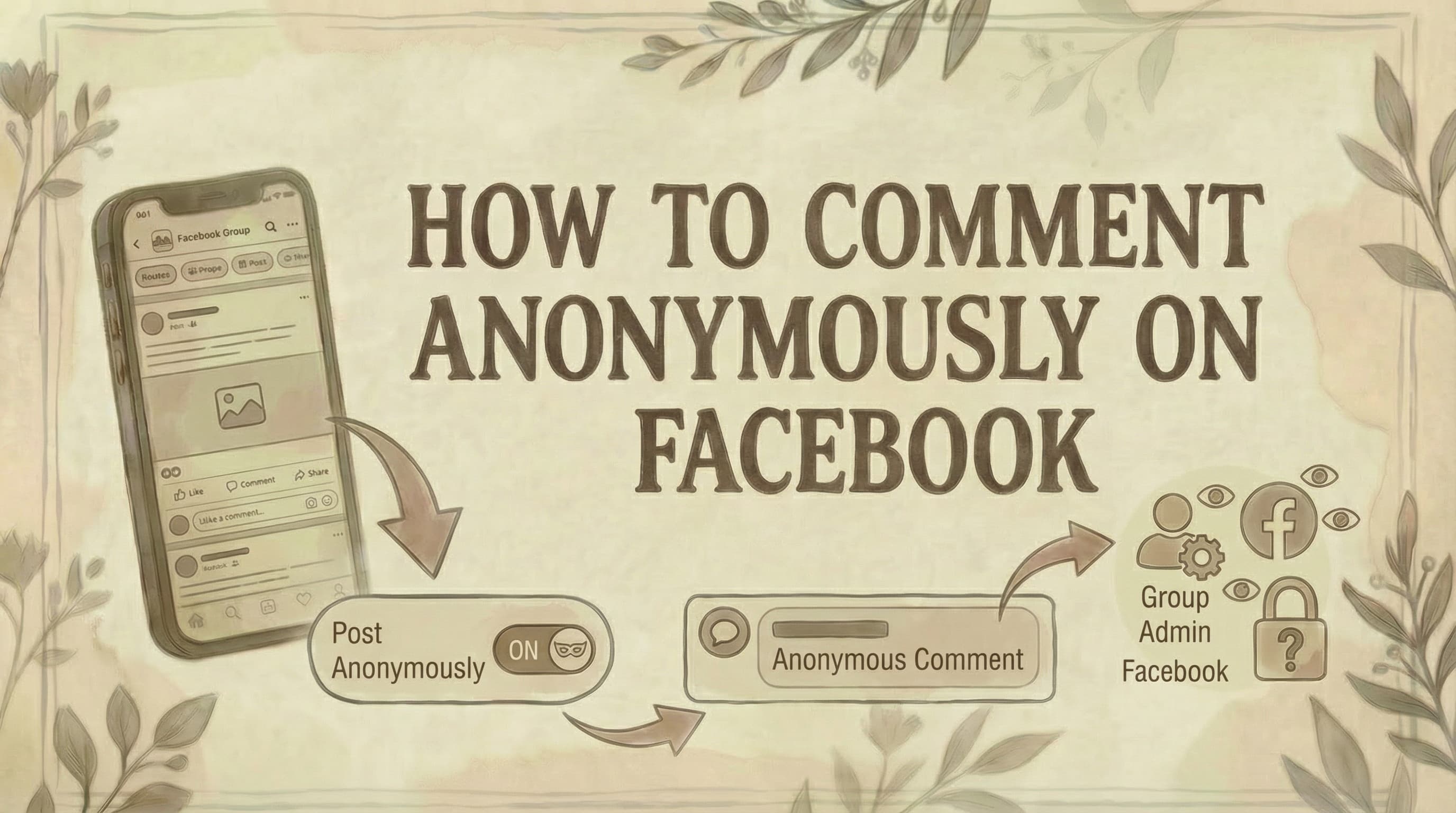
How to Comment Anonymously on Facebook (2026 Guide)

- You can only comment anonymously on Facebook inside groups that allow it, and only on posts you yourself created anonymously - you cannot comment anonymously on other people's posts.
- Group admins can always see your real identity behind anonymous posts - only regular members see the anonymous label. Facebook can also identify you at any time.
- Anonymous posting must be enabled by the group admin - if you don't see the option, the feature has not been turned on for that group.
Facebook does support anonymous posting, but with strict limitations most people don't realize before they try. Here's what's actually possible - and what isn't.
Prefer to watch? Here's a quick video walkthrough of the same steps:
The Truth About Anonymous Commenting on Facebook
Before we explain how to do it, you need to understand Facebook's critical limitations for anonymous commenting.
What you CAN do: ✅ Post anonymously in Facebook groups (if enabled by admin) ✅ Comment anonymously on YOUR OWN anonymous posts ✅ Reply anonymously to comments on YOUR anonymous posts ✅ React to posts anonymously on YOUR anonymous posts
What you CANNOT do: ❌ Comment anonymously on other members' posts ❌ Comment anonymously on regular (non-anonymous) posts ❌ Comment anonymously on Facebook Pages ❌ Comment anonymously on personal profiles ❌ Comment anonymously outside of Facebook groups ❌ Be truly anonymous (admins/moderators always see your identity)
The key point: Anonymous commenting on Facebook is extremely limited. You must first create an anonymous post, then you can only comment anonymously within that post's thread.
How Anonymous Commenting Actually Works
Facebook's anonymous feature is designed for sensitive discussions in supportive communities, not general anonymous browsing.
The Three-Layer System:
Layer 1: Group Settings
- Group admin must enable "Anonymous Posting" feature
- Only available in specific group types (support groups, parenting, health, etc.)
- Not available in public groups or business groups
- Private groups only
Layer 2: Your Anonymous Post
- You create a post using "Post Anonymously" toggle
- Post shows as "Anonymous Member" or "Group Member" to others
- Admin must approve post before it appears
- Your identity visible to admins/moderators and Facebook
Layer 3: Comments on Your Post
- Once your anonymous post is approved, you can comment on it
- Comments automatically appear anonymous (same identity as your post)
- You can reply to others' comments on your post anonymously
- Cannot comment anonymously anywhere else
Who Can See Your Identity:
Group members see:
- "Anonymous Member" or "Group Member"
- Your chosen anonymous nickname (if you set one)
- No profile picture
- No name
Group admins and moderators see:
- Your real name
- Your profile picture
- Your full Facebook profile
- All your activity
Facebook (the company) sees:
- Everything about you
- Your IP address
- Device information
- Location data
- All activity on platform
Why Facebook Limits Anonymous Commenting
Facebook's approach to anonymity reflects a balance between privacy and accountability.
Reasons for the limitations:
1. Prevent abuse and harassment If anyone could comment anonymously on any post, trolling and harassment would skyrocket.
2. Maintain community standards Admins need to enforce rules, which requires knowing who's posting.
3. Reduce misinformation Anonymous commenting on public posts would make fact-checking impossible.
4. Protect vulnerable users The feature is designed for people seeking help, not hiding bad behavior.
5. Comply with regulations Laws in many countries require platforms to identify users who post illegal content.
6. Real-name policy Facebook's core philosophy centers on authentic identity.
How to Post Anonymously on Facebook Groups (Required First Step)
To comment anonymously, you MUST first create an anonymous post. Here's how:
On Desktop:
Step 1: Open Facebook
- Go to facebook.com
- Log into your account
Step 2: Navigate to the Group
- Click Groups in the left sidebar
- Select the group where you want to post anonymously
- Ensure the group allows anonymous posting
Step 3: Start Creating a Post
- Click Write something... in the post box
- You'll see the posting interface
Step 4: Enable Anonymous Posting
- Look for "Post anonymously" toggle near the bottom
- If you don't see it, the group doesn't allow anonymous posts
- Click the toggle to turn it ON
Step 5: Choose Your Anonymous Identity (Optional)
- Some groups let you pick a nickname
- Example: "Anonymous Participant" or custom name
- This nickname will appear instead of "Group Member"
Step 6: Write Your Post
- Type your content
- Add any details you need
Step 7: Submit for Review
- Click Post
- A message appears: "Your post will be reviewed"
- Admins must approve before it's visible
- You'll receive notification when approved
On Mobile (iPhone/Android):
Step 1: Open Facebook App
- Launch the Facebook app
Step 2: Go to Groups
- Tap menu icon (three lines)
- Select Groups
- Choose the group you want
Step 3: Start a Post
- Tap Write something... or + Create post
Step 4: Enable Anonymous Toggle
- Look for "Post anonymously" slider/toggle
- Slide it to the ON position
- If missing, the group doesn't support it
Step 5: Write and Submit
- Type your post
- Tap Post to submit
- Wait for admin approval
Important: After posting anonymously, this post becomes the ONLY place you can comment anonymously.
How to Comment Anonymously on Facebook Groups
Once your anonymous post is approved, commenting anonymously is automatic.
On Desktop:
Step 1: Navigate to Your Anonymous Post
- Go to the Facebook group
- Find your anonymous post in the feed
- Or check your notifications for the approval
Step 2: Click in the Comment Box
- Click where it says Write a comment...
- The comment box expands
Step 3: Type Your Comment
- Write your anonymous comment
- No special toggle needed
- Your identity automatically matches your post
Step 4: Post the Comment
- Press Enter or click Comment
- Comment appears immediately as anonymous
- Shows same identity as your post ("Group Member" or your nickname)
That's it! Because you're commenting on your own anonymous post, Facebook automatically keeps you anonymous.
On Mobile:
Step 1: Find Your Anonymous Post
- Open the Facebook app
- Go to the group
- Locate your anonymous post
Step 2: Tap Comment Section
- Tap Comment below your post
- Or tap Write a comment...
Step 3: Write Comment
- Type your anonymous comment
- Your anonymous identity is automatic
Step 4: Post
- Tap Post or the send icon
- Comment appears anonymously
Reply to Comments Anonymously:
Step 1: Find a comment on your anonymous post Step 2: Tap Reply below that comment Step 3: Type your reply Step 4: Post
Your reply automatically appears anonymous since you're replying on your own anonymous post.
What You Cannot Do Anonymously
Understanding the limitations prevents frustration.
Cannot Comment on Others' Posts
Scenario: Someone else posts in the group, and you want to comment anonymously.
Reality: You cannot. Your comment will show your real name and profile picture.
Why: Facebook only allows anonymous comments on your own anonymous posts.
Cannot Comment on Regular (Non-Anonymous) Posts
Scenario: You made a regular post (not anonymous), and now you want to comment anonymously on it.
Reality: Impossible. Regular posts cannot have anonymous comments.
Why: Anonymous commenting is tied to anonymous posts only.
Cannot Comment Anonymously on Facebook Pages
Scenario: You want to comment anonymously on a business Page post.
Reality: Not possible. Pages don't support anonymous comments.
Why: The feature only works in Facebook groups.
Cannot Send Anonymous Direct Messages
Scenario: You want to message a group member anonymously.
Reality: All Messenger conversations show your real identity.
Why: Messaging is separate from group posting.
Cannot Go Live Anonymously
Scenario: You want to livestream anonymously to the group.
Reality: Not supported. Live videos always show your identity.
Why: Anonymous posting is for text/image posts only.
Cannot Share Content Anonymously
Scenario: You want to share someone's post anonymously.
Reality: Shares always display your real profile.
Why: Sharing is not part of the anonymous posting system.
How to Check If a Group Allows Anonymous Posting
Not all groups support this feature. Here's how to check:
Method 1: Try Creating a Post
Step 1: Go to the group Step 2: Click Write something... Step 3: Look for "Post anonymously" toggle
If you see it: Group allows anonymous posting If you don't: Feature is disabled for this group
Method 2: Check Group Rules/About
Step 1: Go to the group Step 2: Click About in the left menu Step 3: Look for mentions of "anonymous posting" in rules
Some groups explicitly state whether they allow it.
Method 3: Ask Group Admins
Step 1: Send a message to group admins Step 2: Ask: "Does this group allow anonymous posting?"
Admins can confirm and may enable it if disabled.
How Group Admins Enable Anonymous Posting
If you're a group admin and want to allow anonymous posting:
Step 1: Go to your group Step 2: Click Settings (gear icon) Step 3: Select Group settings Step 4: Find "Anonymous posting" option Step 5: Toggle it ON Step 6: Save changes
Note: Some group types may not have this option available.
What Admins and Moderators Can See
Even when posting/commenting anonymously, your identity isn't completely hidden.
Admins Can See:
✓ Your real name ✓ Your profile picture ✓ Your profile link (clickable) ✓ All your anonymous posts in the group ✓ All your anonymous comments ✓ Your posting history ✓ When you joined the group
Admins Can Do:
✓ Approve or reject your anonymous posts ✓ Delete your anonymous posts/comments ✓ Remove you from the group ✓ Ban you if you violate rules ✓ Report your content to Facebook
Facebook (The Company) Can See:
✓ Everything admins see ✓ Your IP address ✓ Device fingerprint ✓ Location data ✓ All activity across Facebook ✓ Connected accounts
The bottom line: You're not anonymous to authorities - only to regular group members.
Why You Can't Comment Anonymously (Common Issues)
If the feature isn't working, here are the usual culprits.
Issue 1: No "Post Anonymously" Toggle
Causes:
- Group admin hasn't enabled the feature
- You're in a public group (only private groups support it)
- You're in a business group (not supported)
- Your app is outdated
Solutions:
- Ask admin to enable anonymous posting
- Switch to a private support group
- Update your Facebook app
- Try desktop if mobile doesn't work
Issue 2: Can't Comment on Someone Else's Post
Cause: Facebook doesn't allow this.
Solution: There is none. This is how the feature works. You can only comment anonymously on your own anonymous posts.
Issue 3: Anonymous Post Pending Forever
Causes:
- Admins haven't reviewed it yet
- Post violates group rules
- Admins disabled anonymous posts after you submitted
Solutions:
- Wait 24-48 hours
- Message admin to ask about status
- Check if your post follows group guidelines
Issue 4: Comments Not Appearing Anonymous
Cause: You're commenting on a regular post or someone else's anonymous post.
Solution: Only comment on YOUR anonymous posts.
Issue 5: Group Members Can See Your Name
Causes:
- You didn't use the anonymous toggle when posting
- You're commenting outside your anonymous post
- There's a bug (rare)
Solutions:
- Delete the comment/post and redo it anonymously
- Report the issue to Facebook
Privacy Considerations and Risks
Anonymous posting isn't completely private. Understand the risks.
What Anonymous Posting Protects:
✓ Your identity from regular group members ✓ Your profile from being associated with sensitive topics ✓ Ability to ask embarrassing questions safely
What It Doesn't Protect:
✗ Your identity from admins/moderators ✗ Your identity from Facebook ✗ Your data from being tracked ✗ Legal accountability if you post illegal content ✗ Complete anonymity from sophisticated tracking
Additional Privacy Tips:
1. Don't include identifying information
- Avoid mentioning your city, workplace, or unique details
- Don't share photos that could identify you
2. Change your writing style
- If someone knows how you write, they might recognize you
- Vary sentence structure and vocabulary
3. Be aware of timestamps
- If you're the only person online at 3 AM, timing could identify you
- Consider posting during peak hours
4. Use caution with follow-up questions
- Multiple posts on the same topic might create a pattern
- Space out your anonymous posts
5. Remember admins have context
- They can see ALL your activity in the group
- They might recognize you from your posting patterns
Alternatives to Anonymous Commenting
If anonymous commenting doesn't meet your needs, consider these options:
1. Create a Secondary Facebook Account
How it works:
- Create a new Facebook account with a pseudonym
- Use it exclusively for sensitive discussions
Risks:
- Violates Facebook's real-name policy
- Account may be banned if detected
- Facebook tracks devices and IPs
Best practices:
- Use a different email
- Don't connect to your main account
- Consider a VPN for extra privacy
2. Use Anonymous-Friendly Platforms
Alternatives:
- Reddit - Username-based, not real names
- Discord - Can use any username
- Telegram - Username-based messaging
- Signal - Encrypted messaging
3. Private Messages to Trusted Members
How it works:
- Send a direct message to someone you trust in the group
- Ask them to post your question anonymously
Pros:
- Truly anonymous to group members
- Trusted intermediary
Cons:
- Requires finding a willing helper
- Second-hand communication
4. Use Privacy Settings More Effectively
On Facebook:
- Limit who can see your posts
- Restrict profile visibility
- Control who can comment on your posts
- Create custom friend lists for different content
Best Practices for Anonymous Posting
If you use the anonymous feature, follow these guidelines:
1. Use it for its intended purpose
- Sensitive health questions
- Parenting struggles
- Financial difficulties
- Relationship issues
- Mental health discussions
2. Don't abuse the feature
- No harassment or bullying
- No misinformation
- No illegal activity
- Respect group rules
3. Be respectful
- Anonymous doesn't mean rude
- Contribute constructively
- Help others who post anonymously
4. Understand it's not truly anonymous
- Admins can see everything
- Facebook tracks everything
- Legal authorities can access your data
5. Verify group trustworthiness
- Check admin reputation
- Read group rules carefully
- Ensure the group is actually private
- If you need to block someone, see how to view blocked Facebook friends
Common Questions
Can I see who else posted anonymously in a group? No. Just as your identity is hidden from other members, their identities are hidden from you. Only admins can see who posted anonymously.
Will my Facebook friends in the group know it's me? Not unless you include identifying information. The anonymous feature hides your name and profile picture from all group members, including your friends.
Can I delete an anonymous post or comment later? Yes. Go to your anonymous post, click the three dots (•••), and select "Delete." It works the same as regular posts, but only you can delete your own anonymous content.
What happens if I leave the group after posting anonymously? Your anonymous posts and comments remain in the group even after you leave. They won't be automatically deleted.
Can I edit an anonymous post after it's been approved? Yes. Click the three dots on your post and select "Edit." However, the edit may require admin approval again depending on group settings.
Do anonymous posts appear in group search? Yes. Other members can find anonymous posts through group search, but they still won't see who posted them.
Can I like or react to posts anonymously? Only on your own anonymous post thread. If you react to other posts in the group, your real identity will be visible.
What if someone figures out it's me? If you included identifying details, there's no way to retroactively hide your identity. Be cautious about what information you share.
Can I report an anonymous post? Yes. All group members can report posts that violate Facebook's Community Standards, even anonymous ones. Admins will investigate.
Is anonymous posting available in all countries? Generally yes, but availability may vary based on local regulations and Facebook's policies in specific regions.
The Bottom Line
Commenting anonymously on Facebook is possible but extremely limited. You can only do it on your own anonymous posts within Facebook groups that allow anonymous posting. Your identity remains hidden from regular group members but is always visible to admins, moderators, and Facebook itself.
Key takeaways:
- Must post anonymously first - Can't comment anonymously without creating an anonymous post
- Only on your own posts - Cannot comment anonymously on others' content
- Groups only - Feature doesn't work on Pages or personal profiles
- Not truly anonymous - Admins and Facebook always know who you are
- Limited availability - Only private groups with feature enabled
- Approval required - Posts must be approved by admins before appearing
Remember: Use anonymous posting responsibly for its intended purpose - seeking help and support in sensitive situations. It's not a tool for avoiding accountability or harassing others. For monetizing your presence, see how to make money with Facebook. For more Facebook account management tips, see our guides on how to change email on Facebook, where to find scheduled posts on Facebook, how to find drafts on Facebook, how to lock Facebook account, how to change name on Facebook, how to add admin to Facebook Page, and how to see who shared my post on Facebook.
Managing your Facebook group engagement and community discussions? Genviral's Facebook Scheduler helps you schedule and manage social media content across platforms, making it easier to maintain active communities while respecting member privacy.

Viktor
Occasional writer, sometimes even funny. Also loves to start conmpanies (weird, I know).


