
social-media
tutorial
How to Change Name on Facebook (Desktop & Mobile 2026)

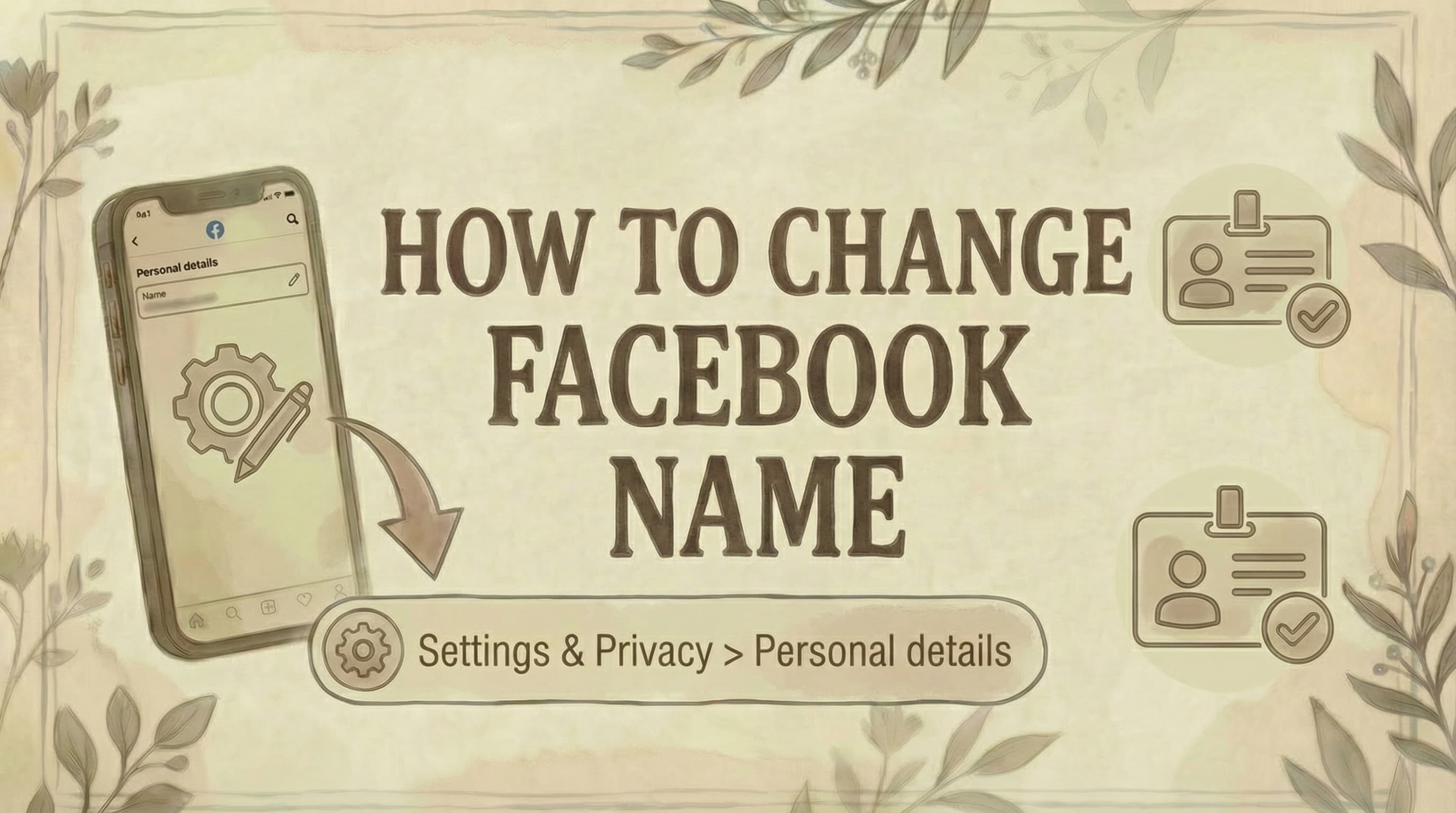
- Change your name at Settings and Privacy - Settings - Account Center - Personal details - Name. You can only change it once every 60 days, so double-check spelling before confirming.
- Facebook requires your name to reflect your real identity - nicknames, titles, symbols, and random characters all violate name policy and can result in an account review or restriction.
- The change takes effect immediately but your profile URL (facebook.com/yourname) does not update automatically when you change your display name.
Changing your Facebook name takes effect immediately through the Accounts Center, but you're limited to once every 60 days - so make sure you get it right.
Why You Might Need to Change Your Facebook Name
Life changes, and your Facebook name should reflect who you are today. Common reasons people change their Facebook name include:
Legal name changes:
- Marriage or divorce (updating to spouse's name or reverting to maiden name)
- Legal name change through courts
- Adoption
- Gender transition
Personal preferences:
- Started using a different version of your name (e.g., Michael to Mike)
- Want to use your middle name
- Correcting spelling errors from when you first created your account
- Updating to a name you're commonly known by
Professional reasons:
- Separating professional identity from personal
- Matching your name across business platforms
- Brand consistency for content creators
Privacy concerns:
- Making yourself less searchable
- Protecting against harassment or stalking
- Using a safer variation of your real name
- For additional privacy protection, see how to view blocked Facebook friends
Whatever your reason, Facebook's name change process is straightforward - but it comes with strict policies and limitations you need to understand first.
Facebook's Name Policy: What You Need to Know
Before changing your name, you must understand Facebook's naming rules. Facebook requires users to use their "authentic name" - the name they go by in everyday life.
What Facebook Allows:
✅ Your real name or the name you're commonly known by in daily life ✅ Name variations that are authentic (Mike instead of Michael) ✅ Cultural name variations (different scripts for the same name) ✅ Legitimate nicknames as alternate names (shown in parentheses) ✅ Maiden names as alternate names ✅ Professional names as alternate names (stage names, pen names) ✅ Middle names included in your full name
What Facebook Prohibits:
❌ Symbols (!@#$%^&*) ❌ Numbers (except in legitimate names) ❌ Unusual capitalization (tYLeR, JOHN) ❌ Repeated characters (Juuuliaaaa) ❌ Punctuation used incorrectly ❌ Titles (Dr., Prof., Mr., Mrs.) ❌ Phrases or random words instead of names ❌ Fake names or impersonations ❌ Offensive words ❌ Characters from multiple languages mixed together (unless authentic)
The 60-Day Rule (Critical Limitation)
You can only change your name once every 60 days.
This is Facebook's most important restriction. If you make a spelling error or change your mind, you'll have to wait the full 60 days to correct it. There are NO exceptions to this rule - even if you made a genuine mistake.
Why this matters: Double-check everything before hitting "Save Changes." One typo means waiting two months to fix it.
How to Change Your Name on Facebook (Desktop)
The desktop method gives you the most control and clearest view of your changes.
Step-by-Step Process:
Step 1: Log into Facebook
- Go to facebook.com
- Enter your login credentials
Step 2: Access Settings
- Click your profile picture in the top right corner
- Click Settings & Privacy
- Select Settings
Step 3: Navigate to Account Center
- In the left sidebar, click Account Center
- Under "Account Settings," click Personal details
- Note: To change your email address, see how to change email on Facebook
Step 4: Select Your Profile
- Click Profiles
- Select your Facebook profile from the list
- If you have Instagram or other Meta accounts, they'll appear here too
Step 5: Edit Your Name
- Click Name
- You'll see fields for:
- First name (required)
- Middle name (optional)
- Last name (required)
- Enter your new name
Step 6: Review Change
- Click Review Change
- Facebook will show you a preview of how your new name will appear
- Carefully check for spelling errors
Step 7: Confirm with Password
- Enter your Facebook password in the popup
- This security step confirms you're the account owner
Step 8: Save Changes
- Click Save Changes
- Your name will update within minutes (sometimes instantly)
Step 9: Wait for Approval (If Required)
- Most name changes are approved immediately
- If Facebook flags your name as unusual, it may require review
- You'll receive a notification if additional verification is needed
How to Change Your Name on Facebook (Mobile)
The mobile app process is nearly identical but with a slightly different navigation path.
For iOS (iPhone/iPad):
Step 1: Open Facebook App
- Launch the Facebook app
- Make sure you're logged in
Step 2: Access Menu
- Tap the three horizontal lines (☰) in the bottom-right corner
Step 3: Open Settings
- Scroll down and tap Settings & Privacy
- Tap Settings
Step 4: Go to Account Center
- Tap See more in Accounts Center under "Account settings"
- Tap Personal details
Step 5: Select Your Profile
- Tap Profiles
- Select your Facebook profile
Step 6: Edit Name
- Tap Name
- Enter your new first name, middle name (optional), and last name
- Tap Review Change
Step 7: Confirm and Save
- Enter your password when prompted
- Tap Save Changes
For Android:
Step 1: Open Facebook App
- Launch the Facebook app
Step 2: Access Menu
- Tap the three horizontal lines (☰) in the top-right corner
Step 3: Navigate to Settings
- Tap Settings & Privacy
- Tap Settings
Step 4-7: Follow Same Steps as iOS
- The remaining steps are identical to iPhone instructions
- Navigate to Account Center > Personal details > Profiles > Name
- Make changes, review, enter password, and save
What Happens After You Change Your Name
Once you submit your name change, here's what to expect:
Immediate effects:
- Your new name appears on your profile (usually instantly)
- Your new name shows in friends' News Feeds
- Your new name appears in search results
What stays the same:
- Your Facebook username (URL) does NOT automatically change
- Your Page names are NOT affected (those must be changed separately)
- Your messages show your new name retroactively
- Your previous posts and comments update to show your new name
- Your 60-day waiting period begins
Friend notifications:
- Friends are NOT directly notified of your name change
- However, they'll see your new name when viewing your profile or seeing your posts
- There's no announcement or notification sent
Search visibility:
- People can find you by your new name immediately
- Your old name may still appear in Facebook's search cache for a short time
Facebook Name Verification: If You're Asked for ID
Facebook may require you to verify your identity if:
- Your name seems unusual to their system
- You've changed your name multiple times
- Your name contains uncommon characters
- Facebook's AI flags your name as potentially fake
- Someone reports your profile
Accepted Forms of Identification:
Government-issued IDs (1 document required):
- Passport
- Driver's license
- National ID card
- State ID card
- Birth certificate
- Green card
- Immigration documents
Non-government IDs (2 documents required if no government ID):
- School/college ID with photo
- Library card
- Work ID badge
- Professional license or certificate
- Yearbook photo
- Utility bill showing your name
- Bank statement
- Marriage certificate
- Name change certificate
- Military ID
- Medical records
- Social welfare card
Requirements for ID submission:
- Must clearly show your name
- At least one ID should show your photo or date of birth
- Name on ID must match the name you're requesting
- Document must be valid (not expired)
- Photo/scan must be clear and readable
- All four corners must be visible
- No glare or blurriness
- For finding draft posts, see how to find drafts on Facebook
How to Submit ID for Verification:
- Facebook will prompt you with a verification request
- Click the verification link in the notification
- Select your document type
- Take a clear photo or upload a scan
- Submit for review
- Wait 24-48 hours for Facebook to review
- You'll receive notification once approved
Pro tip: Use your phone camera (not computer webcam) for better quality. Place ID on a dark surface for contrast, ensure good lighting, and avoid glare.
How to Add a Nickname or Alternate Name
If you don't want to fully change your primary name, Facebook allows you to add alternate names that appear in parentheses.
Types of Alternate Names You Can Add:
- Nickname - What friends call you (e.g., Mike, Liz, TJ)
- Maiden name - Your name before marriage
- Birth name - Your name at birth (if legally changed)
- Professional name - Stage name, pen name, business name
- Name in another language - Different script version
- Former name - A previous legal name
- Alternate spelling - Different spelling of your name
- Name with title - Academic or professional title
How to Add an Alternate Name:
Desktop:
- Go to your profile
- Click About
- Click Details About You
- Under "Other Names," click Add a nickname, a birth name...
- Select the name type from the dropdown
- Enter your alternate name
- Check Show at top of profile (optional)
- Enter your password
- Click Save Changes
Mobile:
- Go to your profile
- Tap About
- Scroll to Details About You
- Tap Add a nickname, a birth name...
- Select name type and enter the alternate name
- Choose visibility options
- Save changes
How alternate names appear:
- Your primary name: John Smith
- With alternate name: John Smith (Johnny)
Benefits of alternate names:
- People can find you by multiple names in search
- You maintain your legal name as primary
- No 60-day waiting period for alternate names
- Can add up to 50 alternate names
- Each can have different visibility settings
Common Issues and How to Fix Them
Issue 1: "You Can't Change Your Name Right Now"
Cause: You changed your name within the last 60 days.
Solution: Wait until 60 days have passed since your last name change. Check your name change history in your Activity Log. There are no exceptions or workarounds.
Issue 2: "This Name Isn't Allowed"
Causes:
- Contains symbols or numbers
- Uses titles (Dr., Mr., Mrs.)
- Has unusual capitalization
- Contains offensive words
- Doesn't follow Facebook's name policy
Solution: Revise your name to follow Facebook's guidelines. Remove any prohibited elements and try again.
Issue 3: "Please Confirm Your Identity"
Cause: Facebook needs to verify you're using your real name.
Solution: Upload a clear government-issued ID or two non-government IDs showing your name. Make sure the name on your ID matches exactly what you're trying to change your name to.
Issue 4: ID Was Rejected
Common reasons IDs are rejected:
- Photo is blurry or unclear
- Name on ID doesn't match requested name exactly
- ID is expired
- Wrong document type selected
- Portions of ID are cut off or obscured
- Glare makes text unreadable
Solution: Take a better quality photo using these tips:
- Use phone camera, not computer webcam
- Place ID on dark flat surface
- Ensure all four corners are visible
- Turn off flash to reduce glare
- Make sure text is sharp and readable
- Submit correct document type
Issue 5: Name Change Still Pending Review
Cause: Facebook is manually reviewing your request.
Solution: Wait 24-48 hours. Check for notifications from Facebook. If no response after 3 days, try submitting different documentation.
Issue 6: Can't Find Name Settings in App
Cause: App interface may vary based on updates.
Solution:
- Update Facebook app to latest version
- Use desktop site if mobile isn't working
- Try Settings & Privacy > Settings > Personal details
- Look for "Account Center" in settings
Issue 7: Changed Name by Mistake
Cause: Typo or incorrect name entered.
Solution: Unfortunately, you must wait 60 days to change it again. There is no immediate fix. This is why reviewing before saving is critical.
Name Change vs. Username Change
Many people confuse Facebook name with Facebook username. They're different:
Facebook Name:
- Your full name displayed on your profile
- What people see when you comment or post
- Appears in search results
- Subject to 60-day limit
Facebook Username:
- Part of your profile URL (facebook.com/username)
- Also called your @name
- Used for tagging and mentions
- Can be changed more frequently
- Must be unique across Facebook
To change your username:
- Go to Settings > Username
- Enter a new username
- Check if it's available
- Save changes
Changing your name does NOT automatically change your username. You must change them separately.
Special Considerations
For Businesses and Pages
Personal profiles: This guide covers personal profile name changes only.
Business Pages: Page name changes follow different rules:
- Go to Page Settings > Page Info
- Edit Page Name
- Subject to approval and different restrictions
- May require verification of business legitimacy
For People with Unique Names
If you have a name from a non-Western culture or a name that includes:
- Characters from non-Latin alphabets
- Legitimate single names (mononyms)
- Names with apostrophes or hyphens
Facebook should accept these if they're authentic. If rejected, you may need to provide ID verification.
For Trans and Non-Binary Individuals
You have the right to use your chosen name on Facebook, even if it doesn't match your legal documents yet. However:
- Facebook may require verification
- You can explain your situation when submitting ID
- Consider adding your legal name as an alternate name (hidden) temporarily
- Once you have updated legal documents, submit those
For Recently Married or Divorced
After marriage:
- You can update to your spouse's name
- May need to provide marriage certificate
- Consider adding maiden name as alternate name
After divorce:
- You can revert to maiden name
- May need divorce decree or legal name change documentation
For People Using Stage Names
Performers, writers, and creators can:
- Keep legal name as primary
- Add stage name as alternate/professional name
- Or change primary name to stage name (may require verification)
- Consider creating a separate Facebook Page for your professional persona
Best Practices for Changing Your Facebook Name
1. Choose Wisely You only get one change every 60 days. Make it count.
2. Review Three Times Check spelling, capitalization, and spacing before saving. One typo means a 60-day wait.
3. Have ID Ready If Facebook might flag your name as unusual, have your ID scanned and ready to submit.
4. Consider Alternate Names First If you just want friends to find you by a nickname, add it as an alternate name instead of changing your primary name.
5. Change Username Too If you want your URL to match your new name, remember to change your username separately.
6. Update Other Platforms If changing for consistency, don't forget to update Instagram, LinkedIn, Twitter, etc.
7. Check Name in Search After changing, search for yourself to see how your name appears to others.
8. Be Patient with Verification If asked for ID, the process takes 24-48 hours. Don't repeatedly submit documents.
9. Keep Legal Documentation Handy Marriage certificates, divorce decrees, or court name change orders may be needed.
10. Don't Fight the 60-Day Rule There's no workaround. If you need to change again, you must wait the full 60 days.
Common Questions
How many times can I change my name on Facebook? Unlimited times over your lifetime, but only once every 60 days. Each change starts a new 60-day waiting period. There are no exceptions to this rule.
Will my friends be notified when I change my name? No. Facebook does not send notifications to friends when you change your name. However, they'll see your new name when viewing your profile, posts, or comments.
Can I use a nickname as my main Facebook name? Yes, if it's a name you're commonly known by in daily life. However, it's often better to add nicknames as alternate names and keep your legal name as your primary name.
What happens to my old posts after I change my name? All your old posts, comments, and messages automatically update to show your new name. There's no way to keep your old name on previous content.
Can I change my name if I don't have an ID? If Facebook requires verification, you'll need ID. However, most name changes don't require verification. If you truly don't have any accepted forms of ID, you may not be able to change your name on Facebook.
Does changing my name change my Facebook URL? No. Your Facebook username (part of your URL) is separate and must be changed independently in Settings > Username.
Can I change my name more frequently than every 60 days? No. The 60-day rule is absolute. Even Facebook support cannot override this limitation. Plan your name change carefully.
What if my name change is rejected? Review Facebook's name policy, ensure your name follows all guidelines, and try again. If rejected again, you may need to submit ID verification or choose a different name that complies with policies.
Can I hide my real name and use only a nickname? No. Facebook requires your primary name to be your authentic name. You can add nicknames as alternate names, but your real name must remain your primary name.
What if my legal name has changed but my ID hasn't been updated yet? You can submit other legal documentation like a marriage certificate, divorce decree, or court order for name change. Include a note explaining your situation.
The Bottom Line
Changing your name on Facebook is a straightforward process that takes less than 5 minutes. The most important things to remember are:
- Review carefully before saving (60-day rule means no quick corrections)
- Follow Facebook's name policy (authentic names only, no symbols/titles)
- Be prepared to verify with ID if Facebook requests it
- Consider alternate names instead of changing your primary name
- Plan ahead because you only get one change every 60 days
Whether you're updating after marriage, correcting a spelling error, or switching to a name you prefer, Facebook's name change process is designed to verify authentic identities while giving users flexibility to represent themselves accurately. For monetizing your presence, see how to make money with Facebook. For more Facebook account management tips, see our guides on where to find scheduled posts on Facebook, how to lock Facebook account, how to add admin to Facebook Page, how to see who shared my post on Facebook, and how to comment anonymously on Facebook.
Managing your Facebook presence across name changes and profile updates? Genviral's Facebook Scheduler helps you maintain consistent social media content scheduling even as your personal brand evolves - ensuring your posts go live on time regardless of profile changes.

Fekri
Builder, founder, father



