
social-media
tutorial
How to Merge Pinterest Boards (and Sections): Step-by-Step

- Merging Pinterest boards moves all pins from one board into another and deletes the original board - it's not a true merge, it's a move-and-delete.
- Followers of the merged board do not transfer to the destination board, and merging cannot be undone (you'd have to recreate the board and move pins back one by one).
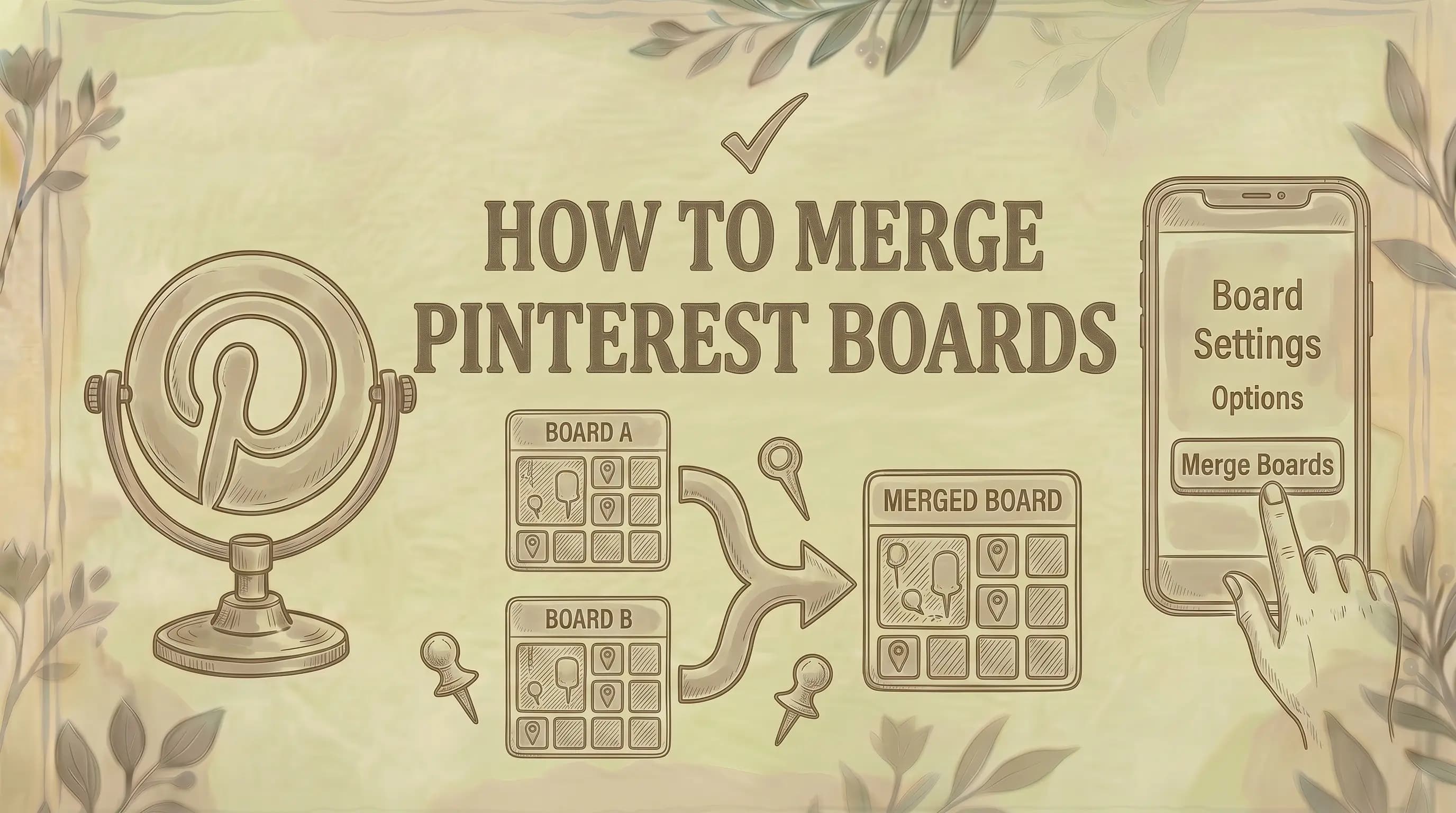
- You can merge boards or individual sections inside a board, on Web (click ⋯ → Merge), iOS, and Android - and you can also drag-and-drop one board onto another on desktop.
If your Pinterest profile is full of overlapping boards or duplicate sections, merging them is the fastest way to clean things up. But Pinterest's merge feature has a few non-obvious gotchas - followers don't transfer, privacy can flip from secret to public, and there's no undo button. Here's exactly how to do it correctly on every platform.
Quick Facts
⚠️ What you need to know first, according to Pinterest's official Help Center:
- Merging is one-way: the source board gets deleted, and all its pins move into the destination board.
- Followers do not transfer when you merge boards.
- If you merge a secret board into a public board, the pins become public (the destination board's privacy wins).
- Merging is not reversible. To undo it, you'd need to create a new board and move pins back one by one.
- You can also merge board sections the same way, inside a single board.
How to Merge Boards (Desktop / Web)
- Log in to pinterest.com
- Click your profile picture (top right) to open your profile
- Click the board you want to merge into another one
- Click the three dots (⋯) next to the board name
- Select Merge
- Click the ▼ dropdown next to Pick a board and choose the destination board
- Click Move Pins and Delete Board
All pins from the source board are now in the destination board, and the source board is deleted.
Alternative: Drag and Drop
You can also merge two boards directly from your profile grid:
- Go to your profile and view your boards
- Drag one board onto the center of another
- Click Move Pins and delete board to confirm
This is faster if you can see both boards on screen.
How to Merge Boards (Mobile)
iOS
- Open the Pinterest app and log in
- Tap your profile picture (bottom right)
- Tap the board you want to merge
- Tap the three dots (⋯) in the top right
- Tap Merge
- Pick a board to merge with
- Tap Merge
Alternative: Tap and hold the board on your profile, tap the edit icon, then swipe down and tap Merge board.
Android
- Open the Pinterest app and log in
- Tap your profile picture (bottom right)
- Tap the board you want to merge
- Tap the three dots (⋯) in the top right
- Tap Merge boards
- Select a destination board
- Tap Merge
Alternative: Tap and hold the board, tap the edit icon, then tap Merge board.
How to Merge Board Sections (Web)
Sections are subfolders inside a board. If you have duplicate or overlapping sections, you can merge them the same way.
- Log in to pinterest.com
- Open the board that contains the sections
- Hover over the section you want to merge
- Click the pencil (edit) icon in the bottom-right corner of the section's cover image
- Select Merge
- Click the ▼ dropdown next to Pick a section and choose the destination section
- Click Move Pins and delete section
Alternative: Drag and Drop Sections
Inside the board, drag one section onto another and confirm Move Pins and delete section.
How to Merge Board Sections (Mobile)
iOS
- Open the Pinterest app
- Tap your profile picture (bottom right)
- Tap the board containing the sections
- Tap the section you want to merge
- Tap the three dots (⋯) in the top right
- Tap Merge
- Pick a destination section
- Tap Merge sections
Android
- Open the Pinterest app
- Tap your profile picture (bottom right)
- Tap the board containing the sections
- Tap the section you want to merge
- Tap the three dots (⋯) in the top right
- Tap Merge
- Pick a destination section
- Tap Move Pins
What Actually Happens When You Merge
A Pinterest "merge" is really a move-and-delete under the hood. Here's what changes:
| Change | What happens |
|---|---|
| Pins | All pins from the source board move into the destination board |
| Source board | Deleted permanently |
| Followers (source) | Lost - they do not roll into the destination board's followers |
| Followers (destination) | Unchanged |
| Board URL (source) | Becomes a dead link |
| Privacy | Destination board's setting wins (secret + public = public) |
| Collaborators (source) | Lose access |
| Sections | Inside-board sections are preserved when merging sections; lost when merging entire boards (pins flatten into the destination) |
| Reversible? | No - rebuild manually |
This is why merging high-traffic boards is dangerous: you can vaporize a follower base in one click.
Merge vs. Delete vs. Archive: Which to Use
| Action | Pins | Source board | Followers | Use when |
|---|---|---|---|---|
| Merge | Move to destination | Deleted | Lost | Consolidating duplicate/overlapping topics |
| Delete | Deleted | Deleted (7-day recovery) | Lost | Removing a board entirely |
| Archive | Preserved | Hidden, not deleted | Hidden | Temporarily hiding a board you may use again |
If you're unsure, archive first. You can always merge or delete later, but you can't unmerge.
For full details on each alternative, see:
- How to delete a board on Pinterest
- How to recover deleted Pinterest boards (7-day window)
- How to make a board on Pinterest private
Before You Merge: A Pre-Flight Checklist
Run through this list before you click Move Pins and Delete Board:
- Check the follower count on the source board. If it has meaningful followers, merging will lose them. Consider archiving instead.
- Check privacy settings. Merging a secret board into a public one makes those pins public. If any pins are private, move them out first.
- Save the board URL if anything links to it externally. The URL dies when the board is deleted.
- Note your sections. Sections inside the source board flatten into the destination (no more section structure). If you want to keep section organization, recreate the sections on the destination board first, then move pins manually.
- Check for group board status. You cannot merge a group board you don't own. You can only leave the group board or remove yourself as a collaborator.
- Confirm the destination board's topic. Pinterest uses board titles and descriptions for SEO. Don't dilute a well-ranked board by dumping unrelated pins into it.
For the broader strategy side, see our Pinterest tips and tricks and Pinterest posting strategy guides.
Common Mistakes to Avoid
Merging boards with very different topics. Pinterest's algorithm reads board titles, descriptions, and pin context. A board mixing recipes and home decor confuses the system and reduces distribution. Better to delete the weaker board or keep them separate.
Merging your highest-traffic board into a weaker one. Always merge into the board that has more followers and SEO authority, not out of it. The destination wins everything.
Merging without backing up pin URLs. If you have pins linked from external sites, those links can break if the destination board changes the canonical pin URL. Spot-check important pins after merging.
Trying to merge across accounts. You can only merge boards inside the same Pinterest account. To move pins between accounts, you have to manually save them - see how to make a pin on Pinterest.
Merging instead of deleting empty boards. If a board has no valuable pins, just delete it. Merging just to clean up adds clutter to the destination board.
Common Questions
Can I undo a merge on Pinterest? No. Pinterest doesn't have an undo button for merges. To restore the original board, you have to recreate it manually and move pins back one by one. This is the single biggest reason to double-check before confirming.
Do followers transfer when I merge boards? No. Followers of the source (deleted) board are lost. Only the destination board's followers remain. This is Pinterest's official behavior, confirmed in the help center.
What happens to the source board's URL? It becomes a dead link. Any external sites, blog posts, or social profiles linking to that URL will return a 404. If the board had inbound links you cared about, archive it instead.
Can I merge a secret board into a public board? Yes, but all pins become public in the process - the destination board's privacy setting applies. If you don't want pins exposed, change the destination board to secret first, or move pins out manually.
Can I merge group boards? You can only merge group boards you own. If you're a collaborator, you can leave the board but not merge it. See our guide on how to find group boards on Pinterest to identify which ones you can manage.
Will merging hurt my Pinterest SEO? It depends. Consolidating two similar boards can help SEO by concentrating authority. Merging unrelated boards usually hurts SEO by diluting the destination board's topic relevance. Keep the topic tight.
Can I merge boards in bulk? No. Pinterest only supports one-merge-at-a-time. Each merge requires clicking through the confirmation. If you have many duplicates, plan the order carefully so you don't end up merging into a board you later want to merge somewhere else.
What happens to pin comments and reactions? Pin engagement (saves, comments, reactions) travels with the pin. The pin keeps its history; only the parent board changes.
Can I merge a board with sections into a board without sections? Yes, but the section structure flattens. All pins land in the destination board's main feed, ungrouped. If you want to keep section structure, manually recreate the sections in the destination board, then move pins into them.
Does merging affect my liked pins or saved pins? No. Likes and saves are tied to individual pins, not boards. They survive a merge.
Can I cancel a merge mid-process? Pinterest processes merges instantly. There's no in-progress state to cancel. Once you click the confirm button, it's done.
When to Merge vs. When Not To
Merge when:
- You have two boards covering the same topic with overlapping pins
- One board is dead (no followers, no traffic) and the other is active on the same topic
- You're cleaning up after a profile refresh or rebrand
- Sections inside a board are too granular and need consolidating
Don't merge when:
- The source board has meaningful followers - archive instead
- Boards cover genuinely different topics - delete the weaker one or keep both
- You might want the board back later - archive instead
- The board is a group board you don't own - you can only leave
- The source board has external inbound links - the dead URL will hurt SEO
Quick Win: Use Merge as Spring Cleaning
If your profile has 50+ boards from years of pinning, merging is the fastest way to tighten things up. A typical clean-up flow:
- List all boards by topic.
- Identify duplicates and near-duplicates.
- Decide which board in each pair has more followers and better SEO - that's the destination.
- Archive any board you're unsure about (don't merge or delete yet).
- Merge the obvious duplicates one by one.
- Review your sections inside surviving boards and merge any duplicates there too.
You'll usually cut your board count by 20-40% without losing pins. For ongoing organization tips, see Pinterest tips and tricks.
Related Pinterest Guides
- How to delete a board on Pinterest - when delete is the right choice instead of merge
- How to recover deleted Pinterest boards - the 7-day recovery window
- How to make a board on Pinterest private - hide a board without losing it
- How to find group boards on Pinterest - identify boards you can't merge
- How to make a pin on Pinterest - create new pins for your tidied boards
- How to delete a Pinterest pin - clean up individual pins
- How to unsave pins on Pinterest - remove pins saved from others
- How to see liked pins on Pinterest - audit your liked pins before merging
- How to make a Pinterest collage - turn merged pins into new content
- How to turn off AI posts on Pinterest - related account control
- Pinterest posting strategy - what to do after consolidating
- Pinterest tips and tricks - keep your profile tidy long-term
- Best Pinterest scheduler - automate your refreshed strategy
Bottom Line
Merging Pinterest boards is the cleanest way to consolidate overlapping topics, but it's permanent and lossy: you lose the source board's followers, you can't undo it, and secret pins can flip to public. Always merge into your stronger board, archive anything you're unsure about, and never merge boards that cover genuinely different topics. For sections inside a board, the same rules apply at a smaller scale.
When you're done tidying, the next move is consistent posting on your surviving boards. That's where a posting strategy and the right scheduler matter most.
Cleaning up your Pinterest profile and want to keep it active without manual pinning? Genviral helps you generate and schedule Pinterest content across multiple boards so your refreshed profile keeps growing.

Viktor
Occasional writer, sometimes even funny. Also loves to start conmpanies (weird, I know).


