
social-media
tutorial
How to Make a Pin on Pinterest (Complete 2026 Guide)

- Create a pin on desktop by clicking Create, uploading an image or video, adding a keyword-rich title (first 40 chars show in feeds), description, destination URL, and selecting a board.
- Use the 2:3 aspect ratio (1000x1500px) for images and 9:16 for video pins - Pinterest recommends these for maximum distribution and may penalize other ratios.
- For best SEO, front-load your primary keyword in the pin title, write a 100-200 character description starting with that keyword, and always add alt text (shown to improve impressions by 25% and clicks by 123%).
Creating a pin on Pinterest is simple, but doing it right makes all the difference.
Whether you're sharing a recipe, promoting a blog post, or showcasing products, this guide covers everything you need to know about creating pins in 2026.
How to Create a Pin on Desktop
According to Pinterest's official Help Center, you can upload images or videos directly from your computer.
Image Pin (Desktop):
- Log in to pinterest.com
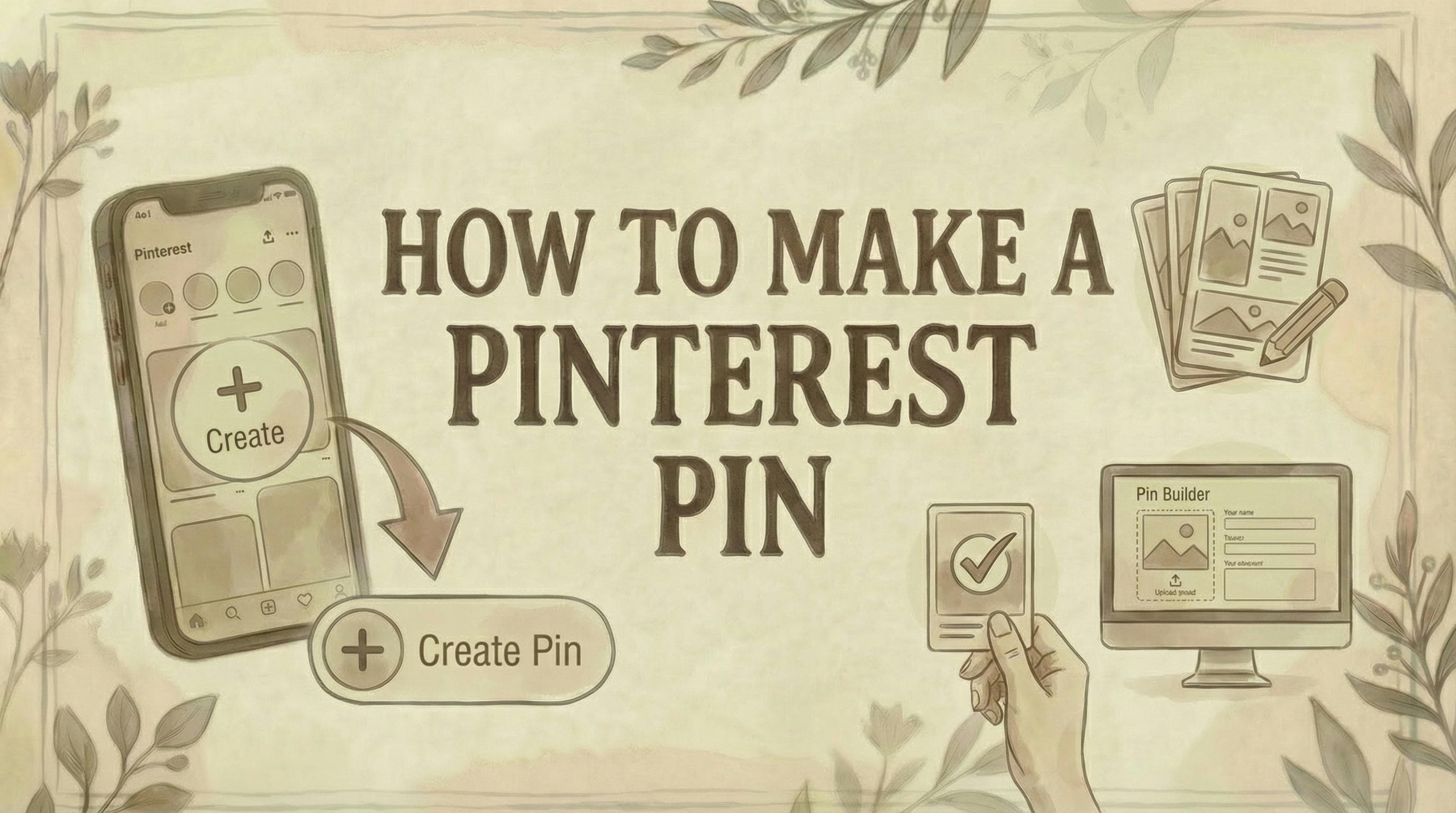
- Click Create (top left)
- For business accounts: Click hamburger menu → Create → Create Pin
- Click the upload icon or drag and drop your image
- Upload up to 10 images at once (each becomes a separate pin)
- Add pin details:
- Title: Up to 100 characters (first 40 show in feeds)
- Description: Up to 500 characters
- Link: Add destination URL (your website, blog, product page)
- Board: Choose existing board or create new one (if you want to save pins privately, see how to make a board on Pinterest private; to delete a board, see how to delete a Pinterest board)
- Tag related topics: Up to 10 topics for better discovery
- Publish later: Schedule up to 30 days ahead (business accounts only)
- Advanced settings: Turn comments/shopping recommendations on/off
- Click pencil icon to edit image (add text, change aspect ratio, filters)
- Click Done → Publish
Video Pin (Desktop):
Same process as image pins, with these additions:
- Select Edit cover to choose video thumbnail
- Upload up to 10 videos (MP4 or MOV format)
- Maximum file size: 20MB (desktop), 32MB (mobile app)
- Video length: Up to 5 minutes
How to Create a Pin on Mobile
iOS/Android:
- Open the Pinterest app
- Tap the + icon (bottom center)
- Tap Pin
- Select image/video from device
- Tap camera icon to take new photo or record video
- Select multiple images/videos to create a video pin mashup
- Tap Next
- Use editing tools (optional):
- Add text overlays
- Apply stickers and effects
- Add filters
- Draw on image
- Adjust colors
- Tap Next when done editing
- Add pin details:
- Title
- Description (can include hashtags, but keywords work better)
- Link
- Tag products: Up to 5 product tags per pin
- Board
- Tag related topics
- Publish later (business accounts)
- Tap Create
How to Create and Schedule Pins with Genviral
While Pinterest's native tools work great for individual pins, using a scheduling platform like Genviral streamlines your workflow when you need to create and schedule multiple pins consistently.
Why Use a Pinterest Scheduler?
Time Efficiency:
- Batch create and schedule pins for weeks ahead
- No need to manually post every day
- Maintain consistent posting even when busy
Better Organization:
- Visual content calendar to see your entire Pinterest strategy
- Media library to store and reuse your pin graphics
- Manage multiple Pinterest accounts from one dashboard
SEO Optimization:
- Built-in keyword suggestions for pin titles and descriptions
- Optimize each pin for Pinterest search visibility
- Track which pins drive the most traffic
How Genviral Works for Pinterest
1. Connect Your Pinterest Account
- Securely connect via OAuth (same secure method Pinterest uses)
- Support for both personal and business accounts
- Manage multiple Pinterest accounts if you have different brands
2. Upload and Create Pins
- Upload your pin graphics to Genviral's media library
- Write SEO-optimized titles and descriptions
- Add destination links to drive traffic to your website
- Select which board to pin to (or create new boards)
3. Schedule Strategically
- Use the visual calendar to plan your pinning schedule
- Schedule pins at optimal times when Pinterest users are most active
- Space out pins automatically to avoid spam filters
- Set up recurring schedules for seasonal campaigns
4. Monitor Performance
- Track which pins get the most saves and clicks
- See which boards drive the most traffic
- Identify your best-performing pin designs
Key Features for Pinterest Marketers
Multi-Account Management: Perfect for agencies or businesses managing multiple Pinterest accounts. Switch between accounts and boards seamlessly from one dashboard.
Bulk Pin Upload: Upload multiple pin images at once and schedule them across different times and boards. Create a week's worth of pins in one session, then let Genviral handle the posting.
Team Collaboration: If you work with a team, Genviral's workspace features let you collaborate on Pinterest content with role-based permissions and approval workflows.
Cross-Platform Scheduling: Since Genviral supports multiple platforms, you can schedule the same content (or variations) to Pinterest, Instagram, TikTok, and other channels from one place.
When to Use Genviral vs. Native Pinterest Tools
Use Genviral when:
- You need to schedule 3+ pins per day consistently
- You manage multiple Pinterest accounts or boards
- You want to batch create content on weekends and schedule for the week
- You need team collaboration features
- You're running seasonal campaigns that require advance planning
Use Pinterest's native tools when:
- You're posting 1-2 pins occasionally
- You prefer the native Pinterest interface
- You need Pinterest's built-in editing tools for quick tweaks
For most serious Pinterest marketers posting 3-5 pins daily, a scheduling tool like Genviral saves hours per week while maintaining the consistency Pinterest's algorithm rewards.
Optimal Pin Sizes for 2026
Pinterest recommends a 2:3 aspect ratio for optimal performance.
Best dimensions:
- 1000 x 1500 pixels (recommended)
- 1080 x 1620 pixels (high resolution alternative)
Acceptable ratios:
- 2:3 (1000 x 1500) - Standard, most recommended
- 1:1 (1000 x 1000) - Square, works but not ideal
- 9:16 (1080 x 1920) - Full-screen vertical video
Avoid:
- Pins longer than 1:2.1 ratio will be truncated in feeds
- Extremely tall "giraffe pins" (8x or 10x taller than wide) are suppressed by Pinterest's algorithm
File requirements:
- Format: PNG or JPEG
- Max size: 20MB (desktop), 32MB (mobile)
- Minimum: 600 pixels wide for clarity
Create Multiple Pins from One Upload
You can upload up to 10 images or videos at once on desktop. Each file creates a separate pin, all with the same title, description, and board assignment. This is useful for batch creating pins from a photoshoot or blog post.
Note: To combine multiple images/videos into a single video pin, you must use the mobile app.
Pin Creation Best Practices (2026 Update)
1. Design Quality
- Use vertical formats - 2:3 aspect ratio performs best
- High-quality images - Clear, well-lit, visually appealing
- Text overlays - Keep concise, use readable fonts
- Branding - Include logo or brand name (not overwhelming)
- Diverse imagery - Show products/ideas in realistic settings
2. Write for Discovery
Pinterest is a visual search engine, not social media. Optimize for search:
- Use keywords in titles and descriptions (not hashtags)
- Front-load important info - First 40 characters of title matter most
- Be specific - "Easy 15-Minute Vegan Dinner Recipes" beats "Dinner Ideas"
- Add 10 topic tags - Helps Pinterest categorize your pin
- Optimize board names - Use keyword-rich board titles
3. Add Destination Links
Always add a link to:
- Your blog post
- Product page
- Website landing page
- YouTube video
- Recipe page
Pins with links drive 3x more engagement and actually help your pin rank higher.
4. Pin to Relevant Boards
- Save pins to keyword-optimized boards matching your content
- Don't spam the same pin to every board you own
- Pinterest's 2026 algorithm penalizes repetitive pinning
5. Create Fresh Content
- Don't just repin old content with minor changes
- Create 3-5 unique pin designs per piece of content
- Space them out over weeks/months
- Change both image AND font style to make truly "new" pins
6. Scheduling Strategy
- Pin once to one relevant board, then move to next pin design
- Avoid pinning same pin to 10+ boards in one day
- Use Pinterest's native scheduler or third-party tools
- Best times: Early morning (7-9 AM), evenings (8-11 PM)
For more advanced strategies on creating high-performing pins, optimizing text overlays, and leveraging Pinterest SEO, check out our Pinterest tips and tricks guide with 15 proven tactics.
Save Pins as Drafts
Pinterest allows you to save unfinished pins as drafts.
Draft limitations:
- Expire after 30 days
- Cannot edit across devices (finish where you started)
- Need 100MB storage on mobile device
- Desktop: Save up to 50 drafts, publish all at once
- Mobile: One at a time
To access drafts:
Desktop: Create → Pin drafts section Mobile: Tap + icon → Pin → Folder icon (bottom right)
Common Pin Types
1. Standard Image Pin
Single image with title, description, and link.
2. Video Pin
Single video or multiple images/videos combined. Autoplays in feed.
3. Carousel Pin
Up to 5 images in one swipeable pin. Great for:
- Step-by-step tutorials
- Product variations
- Multiple angles of same item
To create: Upload 2-5 images → Select "Carousel" option
4. Product Pin (Rich Pin)
Automatically syncs product info from your website:
- Price
- Availability
- Product details
- Buy button
Requires: Schema markup on your website + claimed domain
5. Recipe Pin (Rich Pin)
Auto-includes:
- Ingredients
- Cook time
- Servings
- Ratings
Requires: Recipe schema markup on your site
6. Article Pin (Rich Pin)
Shows:
- Headline
- Author
- Story description
Requires: Article schema markup on your site
Schedule Pins in Advance
Pinterest Native Scheduling (Free for business accounts):
- Schedule up to 30 days ahead
- Edit scheduled pins before they publish
- Limited to smaller queues
How to schedule:
- Create pin as normal
- Select "Publish at a later date"
- Choose date and time
- Click Schedule
What You Cannot Edit After Publishing
Once a pin is published, you cannot change:
- Image or video content
- Audio (for video pins)
- Aspect ratio
What you CAN edit:
- Title
- Description
- Destination link
- Board location
- Comment settings
To change the image/video, you must create a new pin.
Common Questions
How many pins should I create per day? Quality over quantity. Aim for 3-5 high-quality pins per day spread throughout the day. Pinterest's 2026 algorithm prioritizes fresh, original content over volume. Posting 30 identical pins to different boards is considered spam. For a complete posting strategy including seasonal campaigns and batch workflows, see our Pinterest posting strategy guide.
Do hashtags work on Pinterest? Hashtags have limited value on Pinterest compared to keywords. Focus on using keywords in titles, descriptions, and topic tags instead. Pinterest is a search engine, not social media-keywords drive discovery, not hashtags.
Can I delete a pin and repost it? Yes, but it's not recommended. When you delete a pin, you lose all engagement (saves, clicks, comments). It's better to create a new variation and leave the original live. Pins can drive traffic for months or years, so don't delete performing content. If you need to delete pins, see our guide on how to delete Pinterest pins. For pins you've saved from others, see our guide on how to unsave pins on Pinterest.
How long do pins last? Pins have a long lifespan compared to other platforms. A pin can continue driving traffic for months or even years after posting. The average pin lifespan is 3-4 months, but popular pins can perform indefinitely.
Should I use Pinterest's editing tools? Yes, for quick text overlays and basic edits. However, for professional-quality pins, use design tools like Canva or Adobe before uploading. Pinterest's native editor is convenient for last-minute tweaks, but dedicated design software offers more control.
Can I make a pin without an image? No. Every pin requires either an image or video. Pinterest is a visual platform-text-only pins are not supported. If you want to share text-based content, create an image with text overlay using a design tool.
What makes a pin go viral? No guaranteed formula, but high-performing pins typically have: eye-catching visuals, clear value proposition, keyword-optimized titles, linked to quality content, posted to relevant boards, and shared during peak times. Consistency matters more than virality-focus on steady growth.
Do I need a business account to create pins? No, personal accounts can create pins. However, business accounts get: Pinterest Analytics, scheduling features, rich pins, product tagging, ad capabilities, and trend insights. It's free to convert, so it's worth upgrading if you're serious about Pinterest marketing. For more advanced strategies, check out our Pinterest tips and tricks guide with 15 proven tactics.
Create Pins That Drive Traffic
Pinterest is unique-it's a visual discovery engine where people actively search for ideas, inspiration, and solutions. Every pin you create is an opportunity to:
- Drive traffic to your website
- Build brand awareness
- Generate sales
- Grow your audience
- Establish authority in your niche
The key is consistency. Create high-quality, keyword-optimized pins regularly, and Pinterest's algorithm will reward you with increased visibility and long-term traffic growth. To expand your reach beyond your own boards, consider joining group boards on Pinterest. For creating interactive collages, see how to make Pinterest collage. And when your board count gets out of hand, merging Pinterest boards is the cleanest way to consolidate.
Want to streamline your Pinterest strategy? Create your pins in Canva, then use Genviral to schedule and post them automatically to Pinterest along with your other social channels. This keeps your Pinterest feed active even when you're busy, helping you maintain consistency and maximize reach.

Viktor
Occasional writer, sometimes even funny. Also loves to start conmpanies (weird, I know).


