
social-media
tutorial
How to Turn Off AI Posts on Pinterest (2026 Update)

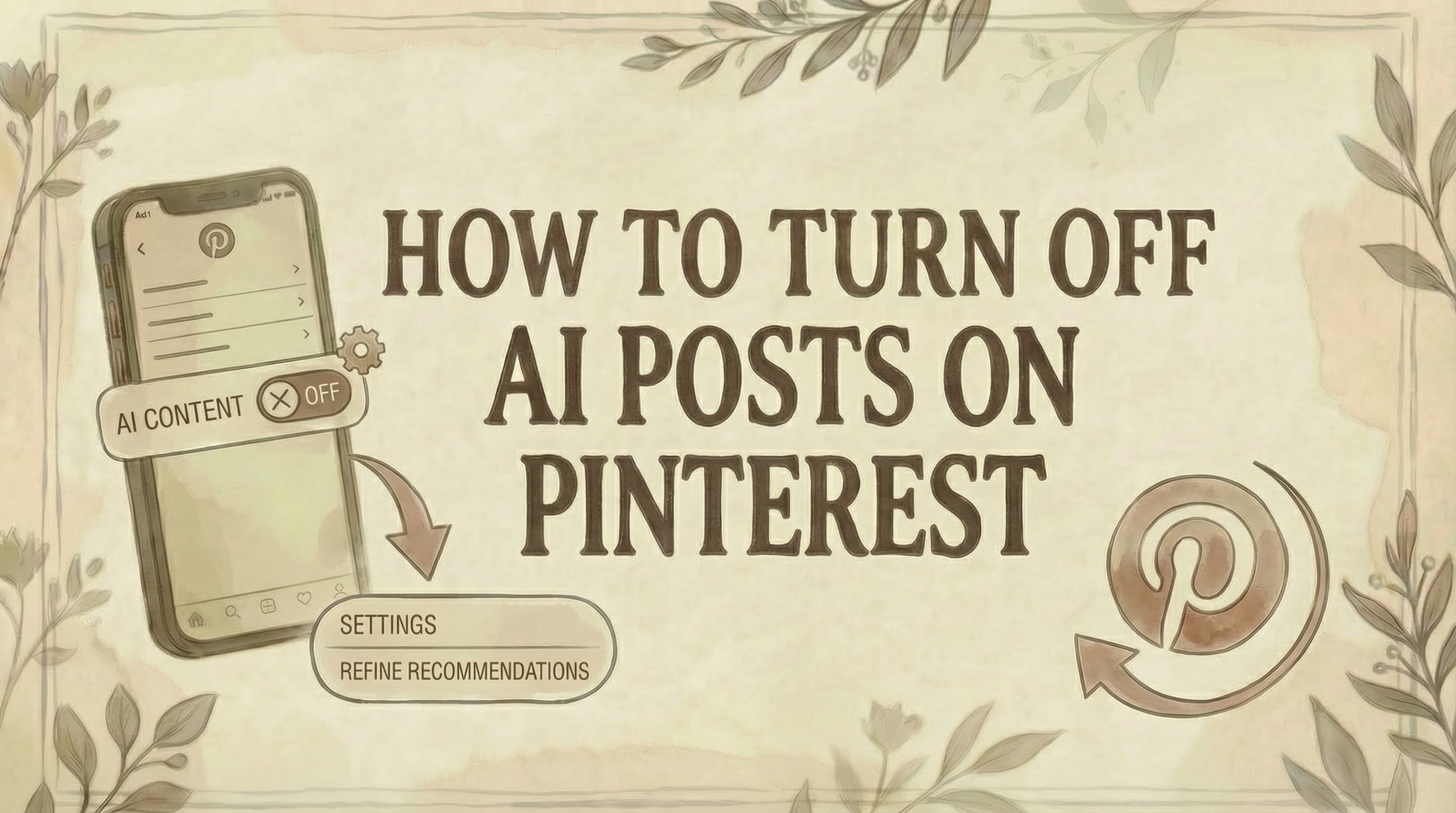
- You can't fully eliminate AI posts from Pinterest, but you can reduce them by opening Refine your recommendations and toggling off the AI content categories you do not want in your feed. Some accounts still label this area as GenAI interests.
- On desktop, the current flow is usually
Profile -> Settings -> Refine your recommendations -> AI content, though some accounts still surface it from the bottom-left more-options menu. On mobile, openProfile -> Settings -> Refine your recommendations -> AI content. - The change is not perfect or instant. Pinterest should start showing fewer AI Pins after the algorithm recalibrates, and you can reinforce it by using See less like this on individual Pins.
Pinterest has been flooded with AI-generated images, making it harder to find real, authentic inspiration. The good news is that Pinterest now gives you a direct way to reduce how much of that content shows up in your feed, and the video above walks through the exact taps on both desktop and mobile.
The Quick Answer
You can't completely eliminate AI posts on Pinterest, but you can significantly reduce them using the AI content controls inside Refine your recommendations. Pinterest's current help documentation also still references GenAI interests on some surfaces, so if you do not see AI content, look for the older label instead.
How to Turn Off AI Posts (Desktop)
Steps:
-
Log in to Pinterest at pinterest.com
-
Click on your profile in the top right.
-
Select Settings
-
Choose Refine your recommendations
-
Click the AI content tab
If you do not see that label, look for GenAI interests instead. Pinterest's official help still uses both names across devices and account types.
-
Toggle OFF all categories where you don't want AI content:
- Architecture
- Entertainment
- Female fashion
- Food and drinks
- Health
- Male fashion
- and any other categories Pinterest shows on your account
-
Pinterest should begin showing fewer AI Pins in those categories over time.
If you do not see it under Settings: Pinterest's official Help Center still documents another desktop path: open the more-options menu in the bottom-left corner, then select Refine your recommendations directly.
How to Turn Off AI Posts (Mobile - Android)
Steps:
-
Open the Pinterest app
-
Tap your profile picture (bottom right)
-
Tap your profile photo again (top left)
-
Select Refine your recommendations
-
Tap the AI content tab
If your app still shows the older label, tap GenAI interests instead.
-
Toggle OFF each category you don't want AI content in
For business accounts or the newer app layout: Tap your profile → three dots in the top-right → Settings → Refine your recommendations → AI content
How to Turn Off AI Posts (Mobile - iOS/iPhone)
Steps:
-
Open the Pinterest app
-
Tap your profile picture (bottom right)
-
Tap your profile photo again (top left)
-
Select Refine your recommendations
-
Tap the AI content tab
If your app still shows the older label, tap GenAI interests instead.
-
Toggle OFF each category you don't want AI content in
For business accounts or the newer app layout: Tap your profile → three dots in the top-right → Settings → Refine your recommendations → AI content
What Else You Can Do to Reduce AI Content
1. Stop Your Data from Training Pinterest's AI
Pinterest uses your saved content to train "Pinterest Canvas," their AI image generator. You can opt out:
Desktop:
- Settings → Privacy and data
- Uncheck "Use your data to train Pinterest Canvas"
- Click Save
Mobile (iOS & Android):
- Profile → Profile photo → Privacy and data
- Toggle OFF "Use your data to train Pinterest Canvas"
Note: Users under 18 are automatically opted out and cannot opt in.
2. Hide Individual AI Pins
When you spot an AI-generated image:
- Tap the three dots (...) on the Pin
- Select "Hide Pin", "Not interested", or "See less like this"
This trains Pinterest's algorithm to show you less of that type of content.
To remove AI pins you've already saved: If you've saved AI-generated pins to your boards and want to remove them, see our guide on how to unsave pins on Pinterest.
3. Refine Other Recommendations
While in "Refine your recommendations," you can also:
- Activity: Turn off recommendations based on Pins you've viewed
- Boards: Turn off recommendations from specific boards
- Interests: Remove topics you no longer want to see
- Following: Review and unfollow accounts posting AI content
How Pinterest Detects AI Content
According to Pinterest's AI labeling documentation, Pinterest identifies AI-generated images by:
Analyzing metadata - Checking IPTC metadata standards that indicate AI generation
Using classifiers - Automated systems detect AI content even without metadata
Labeling - When detected, Pinterest shows an "AI modified" label at the bottom left when you click on a Pin
However, Pinterest acknowledges the system isn't perfect. In practice, AI images can still slip through, especially when creators remove metadata or when a generated image looks close enough to a real photo to avoid detection.
Important Limitations
You'll See Fewer, Not Zero, AI Posts
Pinterest's official language says you'll see "fewer" AI posts, not that they'll be completely eliminated. The system:
- Only reduces AI content in eligible image Pins
- Doesn't apply to all categories (some are missing)
- Depends on accurate AI detection
- Won't affect AI content in ads
That matches the real-world limitation shown in the video: a single image is much harder to classify than AI video, so some content will still get through.
Categories Vary By Account
Pinterest does not show the exact same AI-content categories to every user. In the current UI, you may see categories such as:
- Architecture
- Entertainment
- Female fashion
- Food and drinks
- Health
- Male fashion
Other accounts may still show the earlier GenAI-interest category set instead. The important part is simple: turn off every category Pinterest gives you if you want the strongest filter.
It Takes Time to Work
After turning off the AI-content settings:
- Allow 1-2 days for the algorithm to adjust
- Continue hiding individual AI Pins to reinforce preferences
- The feed learns from your ongoing behavior
Common Questions
Why can't I see the AI content or GenAI interests option? Possible reasons:
- App needs updating - Update to the latest Pinterest version from your app store
- Gradual rollout - The feature may not have reached your account yet (try signing out and back in)
- Try desktop - Access via web browser at pinterest.com instead
- Check both labels - Settings → Refine your recommendations → AI content or GenAI interests
Does this remove AI content from ads? No. The AI-content controls only apply to organic Pins, not paid advertising. Ads with AI content will still appear, but you can see if an ad was AI-generated by clicking "Why am I seeing this ad?"
Can I turn AI content back on? Yes. Just go back to AI content or GenAI interests and toggle categories back ON if you want to see AI-generated content again.
Will this affect pins I've already saved? No. This only controls what new content appears in your feed going forward. Pins you've already saved remain unchanged. If you want to keep a curated board of real, non-AI inspiration that only you can see, move it to a secret board - see how to make a board on Pinterest private.
Does turning this off help reduce AI content site-wide? It only affects your personal feed. Other users will still see AI content unless they adjust their own settings.
What about AI-generated text or descriptions? These controls only apply to AI-generated images. Pinterest doesn't currently have filters for AI-written descriptions or captions.
Can content creators appeal if their real photos get labeled as AI? Yes. According to Pinterest's Gen AI labels documentation, if your authentic content gets incorrectly labeled as AI-generated, you can appeal through Pinterest's help center.
Do these settings sync across devices? Yes. In the walkthrough above, changes made on desktop show up on mobile as well, and Pinterest should keep those recommendation settings synced across devices.
Why Pinterest Added This Feature
In October 2024, Pinterest faced mounting criticism about the influx of AI-generated content - what users called "AI slop" - degrading the platform's core value of finding real-world inspiration.
According to Matt Madrigal, Pinterest's Chief Technology Officer:
"With our new GenAI controls, we're empowering people to personalize their Pinterest experience more than ever - striking the right balance between human creativity and AI innovation."
The platform acknowledged that 57% of all online content is now AI-generated, and users demanded more control over their feeds.
The Bottom Line
Turning off AI posts on Pinterest isn't perfect, but it's a significant improvement:
- Use the AI content or GenAI interests settings to reduce AI Pins in the categories Pinterest offers on your account
- Opt out of AI training to stop your content from training Pinterest Canvas
- Hide individual AI Pins or tap See less like this to train the algorithm
- Give it time - the algorithm needs 1-2 days to adjust
For the best results, combine all three methods and continue curating your feed by hiding AI content when you see it.
If you're looking for a specific pin you saved, check out our guide on how to see liked pins on Pinterest to find pins in your boards and activity history. To remove pins you no longer want, see how to delete a Pinterest pin. To create high-quality, authentic pins that stand out from AI content, see our guide on how to make a pin on Pinterest and our Pinterest tips and tricks for design best practices. For creating interactive collages, see how to make Pinterest collage. To expand your reach, consider joining group boards on Pinterest. To clean up overlapping boards on your profile, see how to merge Pinterest boards. Ready to monetize? See how to make money with Pinterest.
Want to optimize your Pinterest strategy? If you're managing multiple social platforms, Genviral's Scheduler helps you schedule pins and posts across all your accounts in one place.

Viktor
Occasional writer, sometimes even funny. Also loves to start conmpanies (weird, I know).


