
social-media
tiktok
tutorial
How to Block Someone on TikTok (2026 Guide)

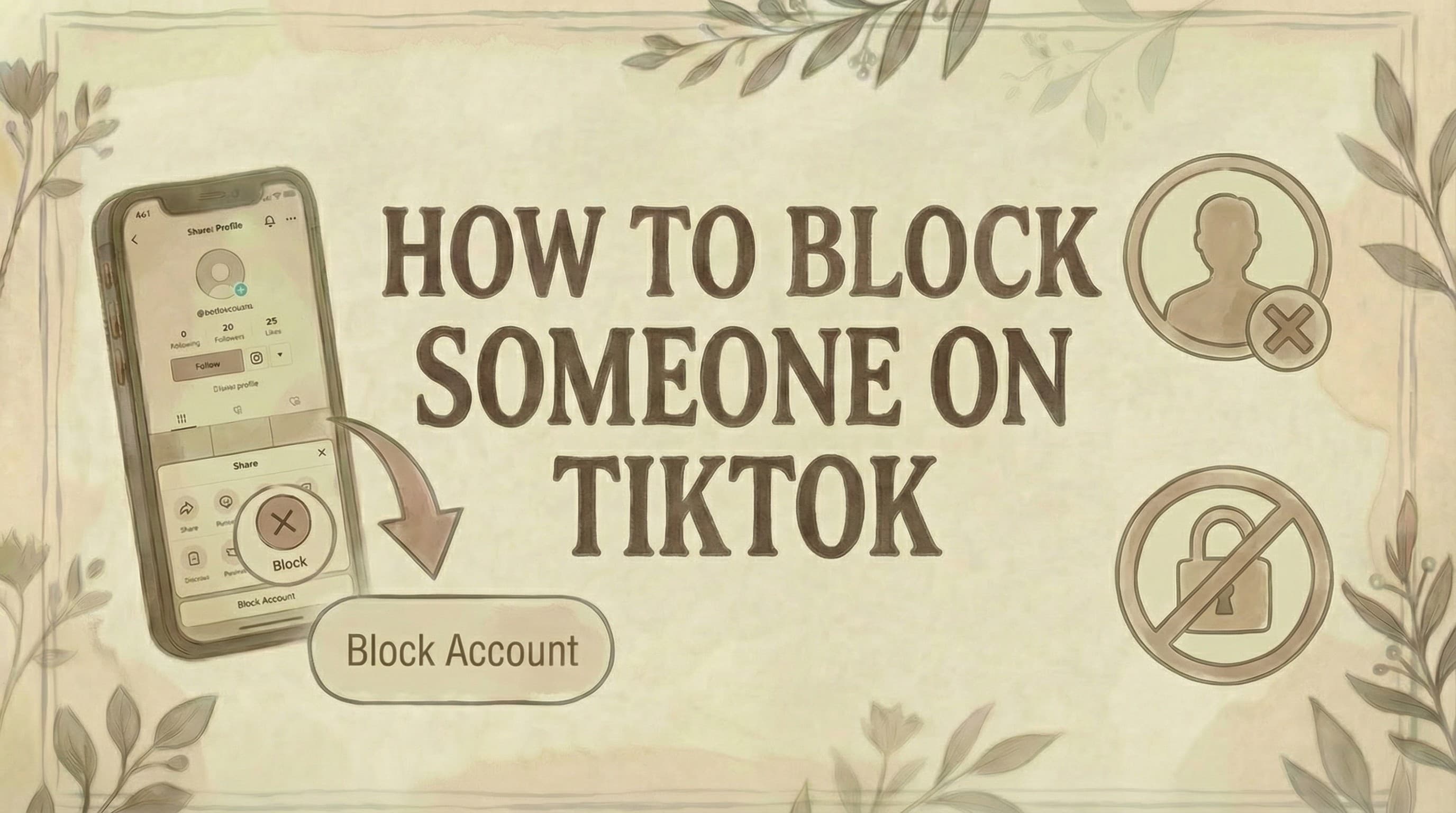
- To block: go to their profile, tap the Share arrow (top-right), select Block, and confirm. The blocked user is not notified.
- When blocked, they can't view your profile, videos, or comments, can't find you in search, and can't send messages - and you won't be able to see their content either.
- To bulk block commenters, long-press a comment, tap the author's username, and block directly from there - no need to visit each profile individually.
Blocking on TikTok is fast and completely private - the person you block is never notified. Here's how to block from a profile, a comment, or in bulk.
How to Block Someone on TikTok (Mobile)
Step 1: Open TikTok app
Step 2: Go to the user's profile
- Search their username
- Or tap their profile from a video/comment
- Note: If you're having trouble following people, see why can't I follow people on TikTok
Step 3: Tap the Share arrow
- Top-right corner (looks like arrow pointing right)
- Or three dots (depending on app version)
Step 4: Tap "Block"
Step 5: Confirm by tapping "Block" again
Done. The user is now blocked.
How to Block Someone on Desktop
Step 1: Go to tiktok.com
- Log in to your account
Step 2: Find the user's profile
- Search their username
- Or click their profile from a video
Step 3: Click three dots
- Top-right corner of their profile
Step 4: Click "Block"
Step 5: Confirm by clicking "Block" again
That's it. They're blocked from desktop too.
How to Block Multiple People at Once (Bulk Blocking)
Block up to 100 accounts at once from your comments.
Step 1: Open one of your videos
Step 2: Tap "Comments"
Step 3: Long-press a comment
- Or tap pencil icon (top-left)
Step 4: Tap "Manage multiple comments"
Step 5: Select comments from accounts you want to block
- Up to 100 at a time
Step 6: Tap "More" (bottom menu)
Step 7: Tap "Block accounts"
Step 8: Confirm "Block accounts"
Result: All selected accounts are blocked instantly, and their comments disappear.
Note: Bulk blocking only works for users who have commented on YOUR videos.
What Happens When You Block Someone?
They cannot:
- ❌ View your profile
- ❌ See your videos
- ❌ Comment on your posts
- ❌ Send you messages
- ❌ Find your account in search
- ❌ Tag or mention you
- ❌ Duet or Stitch your videos
- ❌ See your likes or comments on other videos
You cannot:
- ❌ See their profile or videos
- ❌ Find them in search
- ❌ Message them
What stays:
- Their old comments on your videos are hidden (not deleted)
- They might still appear in group chats or multi-host lives (but can't contact you directly)
Does TikTok Notify When You Block Someone?
No. TikTok does NOT send a notification when you block someone.
However, they might figure it out if:
- They try to visit your profile (it appears blank)
- They search for you (you won't appear)
- They try to message you (can't send messages)
- Your videos disappear from their feed
Bottom line: No direct notification, but they can suspect if they look.
How to See Who You've Blocked
Step 1: Go to Profile
Step 2: Tap menu (three lines, top-right)
Step 3: Tap "Settings and privacy"
- Note: Region settings may affect privacy features (see how to change TikTok account region)
Step 4: Tap "Privacy"
Step 5: Tap "Blocked accounts"
Here you'll see:
- List of all blocked users
- Option to unblock any of them
How to Unblock Someone
Method 1: From their profile
Step 1: Go to their profile
- You can still access it via old links or DMs
Step 2: Tap Share arrow or three dots
Step 3: Tap "Unblock"
Done. They can now interact with you again.
Method 2: From blocked list
Step 1: Settings → Privacy → Blocked accounts
Step 2: Find the user
Step 3: Tap "Unblock" next to their name
Result: They're unblocked immediately.
Note: After unblocking, they don't automatically follow you again. They must follow you again manually.
When to Block Someone on TikTok
Block if someone is:
- Harassing or bullying you
- Sending spam or scam messages
- Leaving hateful comments
- Stalking or making you uncomfortable
- Impersonating you or others
- Posting inappropriate content
- Being persistently negative
- Someone you simply don't want viewing your content (ex, coworker, etc.)
Your safety and comfort come first. Don't hesitate to block.
Alternatives to Blocking
If blocking feels too extreme:
1. Mute
- Go to their profile → Three dots → "Mute"
- Their videos won't appear in your feed
- They can still view and interact with your content
- They won't know you muted them
2. Restrict Comments
- Settings → Privacy → Comments
- Choose "Friends" or "No one"
- Limits who can comment on your videos
3. Filter Comments
- Settings → Privacy → Filters
- Add keywords to auto-filter comments
- Helps reduce spam and negativity
4. Make Account Private
- Settings → Privacy → Private account (toggle on)
- Only approved followers see your content
- You control who follows you
- For managing your saved content, see how to see saved videos on TikTok
5. Report
- If someone violates TikTok's guidelines
- Tap three dots → "Report"
- TikTok reviews and may ban them
Can You Block Someone Who Doesn't Follow You?
Yes. You can block anyone on TikTok.
- Don't need to follow them
- They don't need to follow you
- Works for strangers, spam accounts, anyone
Just visit their profile and block.
What If You Can't Find Someone to Block?
If they blocked you first:
- You won't find them in search
- Their profile appears blank to you
Workaround:
- Use a different account or ask a friend
- Find their profile
- Copy their profile URL
- Paste URL in browser while logged into your account
- Block them from there (if profile loads)
Or: If you have old messages, block from DM thread.
Blocking Limits
Individual blocks:
- Can block up to 10,000 total accounts
Bulk blocking:
- Can block up to 100 accounts at once
- Only from your video comments
- Can repeat this multiple times
If you hit the limit:
- Unblock old accounts you no longer need blocked
- Then block new ones
Troubleshooting
Block button not working:
- Update TikTok to latest version
- Check internet connection
- Restart app
- Try desktop instead of mobile (or vice versa)
- For managing your unpublished content, see where to find TikTok drafts
Can't find Block option:
- Look under Share arrow (not three dots)
- TikTok changed UI - update app
- On desktop, check three-dot menu
Block didn't work:
- Confirm you tapped "Block" twice (confirmation step)
- Refresh profile to check
- Visit Blocked list to verify
Person you blocked still appears:
- May take a moment to update
- Restart app
- Their old content may still be cached
Common Questions
Can someone see if I blocked them? No direct notification, but they'll notice if they try to view your profile or interact with you.
Can I block someone without visiting their profile? Yes. Use bulk blocking from comments, or block from DMs if you have a message thread.
What happens to my comments on their videos? Your comments remain visible to others, but you won't see their videos anymore.
Can blocked users still see my comments on other people's videos? No. Blocked users can't see your activity anywhere on TikTok.
Does blocking remove their followers from my account? No. If they followed you before blocking, you'll need to manually remove them from your followers list.
Can I block someone temporarily? Yes. Block them, then unblock when ready. There's no "temporary block" feature, but you can unblock anytime.
Will blocking stop them from downloading my videos? It prevents them from seeing your videos, but if they already downloaded them before blocking, those copies remain on their device.
Can blocked users create a new account to view my content? Yes. Blocking only affects the specific account. If your profile is public, new accounts can see your content. Consider making your account private. For creating your own content, see how to make a slideshow on TikTok PC.
Does TikTok notify me when someone I blocked tries to view my profile? No. You won't receive any notifications about blocked users' attempts to access your profile.
How long does blocking last? Forever, until you manually unblock them.
The Bottom Line
Blocking on TikTok:
Mobile: Profile → Share arrow → Block → Confirm Desktop: Profile → Three dots → Block → Confirm Bulk: Comments → Manage multiple → Select → Block accounts
Key points:
- No notification sent to blocked person
- They can't view or interact with you
- Can block up to 10,000 accounts total
- Can bulk block 100 at once from comments
- Unblock anytime from Settings or their profile
Use blocking to protect your privacy, reduce negativity, and create a safer TikTok experience. If you also want to browse profiles without joining TikTok's mutual viewer list, see how to turn off profile views on TikTok. For adding a link to your bio, see how to add link to TikTok bio. For sharing others' videos, see how to repost on TikTok. For creating AI-generated images for your content, see how to create TikTok slideshow images with AI. For growth strategies, see TikTok growth strategies for SaaS, and for targeting specific audiences, see how to target US users on TikTok. Also consider learning how to get a TikTok Spark Code and how to make money with TikTok to socialize and monetize your best content. If blocking isn't enough and you'd rather start over, see how to delete your TikTok account.
Need help managing your social media presence across platforms? Genviral helps you schedule and manage content on TikTok, Instagram, Facebook, and more-keeping your accounts organized and your community engaged.

Viktor
Occasional writer, sometimes even funny. Also loves to start conmpanies (weird, I know).


