
social-media
tiktok
tutorial
How to Repost on TikTok (2026 Guide)

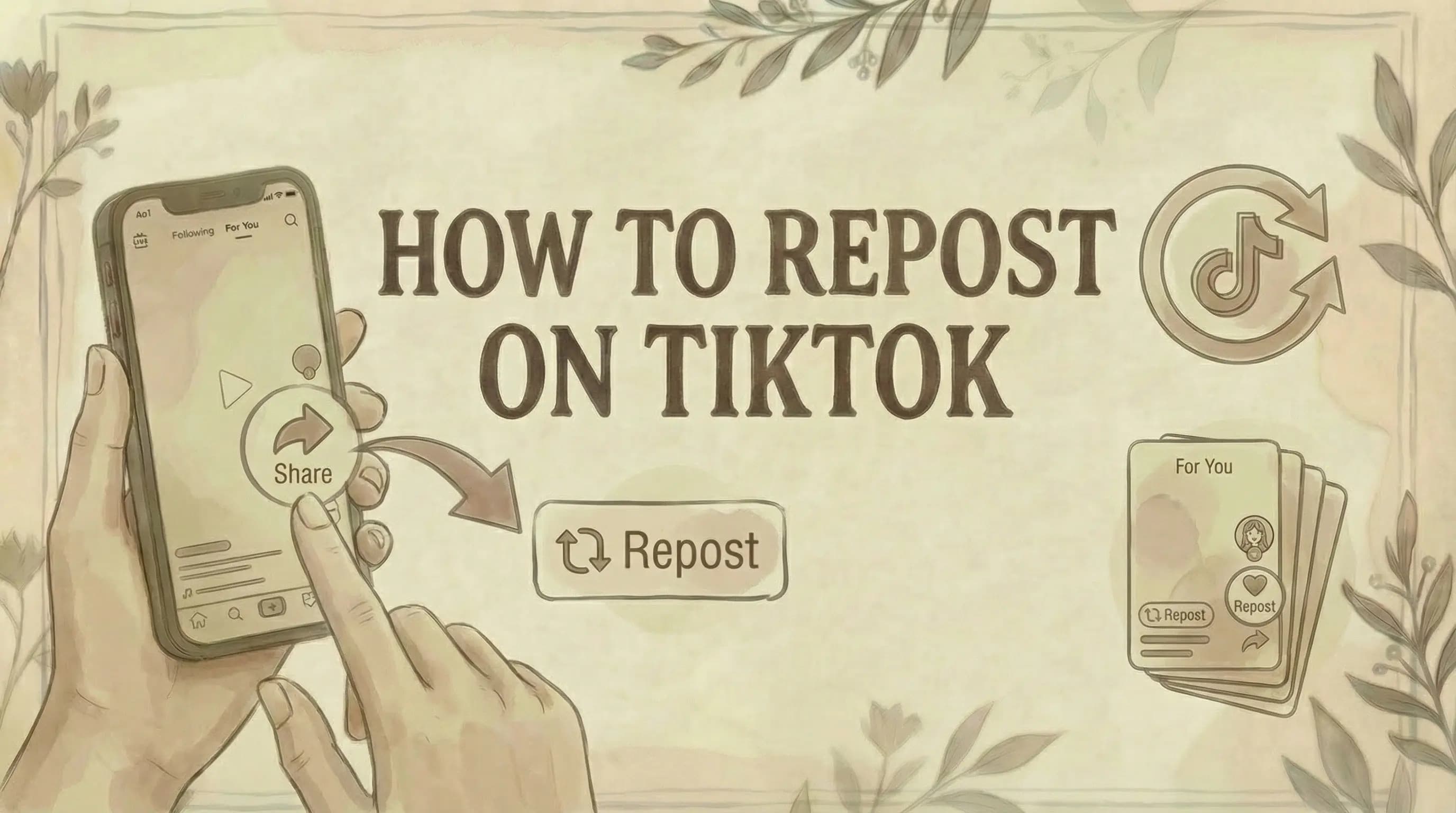
- To repost: open any video, tap the Share arrow, and tap "Repost." The video appears on your followers' For You Page with your profile photo attached - it does not appear on your profile grid.
- Reposts give full credit to the original creator, all engagement (likes, comments, shares) stays on their post, and you can find your reposts in a dedicated Repost tab on your profile.
- To undo a repost: tap the Share arrow on the same video and tap "Remove repost" - the video is immediately removed from your followers' feeds.
TikTok's Repost feature lets you recommend videos to your followers without the video appearing on your own profile grid. Here's how it works and how to undo it.
What Is Reposting on TikTok?
Reposting lets you share videos from other creators with your followers. It's TikTok's version of retweeting.
Key points:
- Reposted videos appear on your followers' For You feed
- Your profile photo and name appear on the video showing you reposted it
- The original creator keeps full credit
- Reposts don't appear on your main profile grid
- You can find your reposts in the Repost tab on your profile
Think of it like recommending a video to everyone who follows you.
How to Repost on TikTok
Method 1: Using the Share Button
- Open the TikTok app
- Find a video you want to repost
- Tap the Share button (arrow icon on the right side)
- Tap Repost (yellow button)
- Optional: Add a comment before reposting
Method 2: Press and Hold
- Find a video you want to repost
- Press and hold on the video
- Tap Repost from the menu
Method 3: From a Friend's Repost
- See a video a friend reposted
- Tap their profile photo on the video
- Tap Repost
Done! The video will now appear on your followers' For You Pages.
Adding a Comment to Your Repost
You can add context or your thoughts when reposting:
- After tapping Repost, look for the comment option
- Type your comment (appears with your repost)
- Tap the send/confirm button
Your comment shows alongside your profile when followers see the reposted video.
How to Remove a Repost
Changed your mind? Here's how to undo a repost:
Method 1: Via Share Button
- Find the video you reposted
- Tap the Share button
- Tap Remove repost (same spot where Repost was)
Method 2: Press and Hold
- Find the reposted video
- Press and hold on the video
- Tap Remove repost
Method 3: From Your Profile
- Go to your Profile
- Tap the Repost tab (two arrows icon)
- Find the video
- Tap your profile photo on the video
- Tap Reposted → Remove repost
The video will no longer appear as your repost on followers' feeds.
Where to Find Your Reposts
Your reposts are stored in a dedicated tab on your profile:
- Go to your Profile
- Look for the Repost tab (two arrows icon below your bio)
- Tap it to see all videos you've reposted
- For finding drafts instead, see where to find TikTok drafts
This tab is visible to others (unless you have a private account).
What Happens When You Repost
What your followers see:
- The reposted video appears on their For You Page
- Your profile photo shows above the video
- A label indicates you reposted it
- They can see any comment you added
What the original creator sees:
- They do NOT get a notification that you reposted
- Reposts don't show as a separate metric in their analytics
- They only know if you're mutuals and see it on your profile
Where reposts appear:
- Your followers' For You feeds
- Friends' For You feeds (people you may know)
- Your Repost tab on your profile
- NOT on your main profile video grid
Repost Privacy Settings
Public account:
- Anyone can see your Repost tab
- Reposts appear to all followers' feeds
Private account:
- Only approved followers can see your reposts
- Reposts only appear to your followers
Adjusting repost visibility:
- Go to Profile → Settings and privacy
- Tap Privacy
- Find Repost settings
- Adjust who can see your reposts
You can also prevent others from reposting YOUR videos:
- Go to Settings and privacy → Privacy
- Tap Repost
- Toggle off Video reposts
Why Can't I Repost on TikTok?
Common reasons:
1. Creator disabled reposts Some creators turn off reposting for their videos. If you don't see the Repost option, the creator has disabled it.
2. App needs updating Update TikTok to the latest version in the App Store or Google Play.
3. Feature not available yet TikTok rolls out features gradually. If you don't have the repost button, check back later.
4. Private account restrictions You can't repost videos from private accounts unless you follow them.
5. Account restrictions If your account has been restricted for violating guidelines, some features may be limited.
6. Clear cache and restart
- For account limits that can block actions, see why can't I follow people on TikTok
To clear TikTok cache:
- Go to Profile → Three lines (☰) → Settings and privacy
- Tap Cache & Cellular → Free up space
- Tap Clear
- Restart the app
Repost vs. Other Sharing Options
| Feature | What It Does | Where It Appears |
|---|---|---|
| Repost | Shares to followers' FYP | Followers' For You feed |
| Share to Story | Adds video to your Story | Your Story (24 hours) |
| Send to Friend | DMs the video | Private message |
| Copy Link | Copies video URL | Anywhere you paste it |
| Duet | Creates split-screen video | Your profile as new video |
| Stitch | Uses clip in your video | Your profile as new video |
Repost is the quickest way to share without creating new content.
How to Repost to Your TikTok Story
TikTok also lets you share videos to your Story:
- Find a video you want to share
- Tap the Share button
- Tap Repost to Story (or "Add to Story")
- Customize in the Story editor if desired
- Post to your Story
The video appears in your Story for 24 hours.
Can You Repost Your Own TikTok Videos?
The repost button is designed for sharing OTHER creators' content. However, if you want to reshare your own video:
Option 1: Share to Story
- Tap Share on your video → Add to Story
Option 2: Reupload
- Download your video → Upload as a new post
Option 3: Pin the video
- Go to your video → Tap three dots → Pin
- Pinned videos appear at the top of your profile
There's no native "repost your own video to FYP" feature, but these alternatives help boost visibility.
Tips for Effective Reposting
Do: ✓ Repost content relevant to your audience ✓ Add comments to provide context ✓ Use reposts to support creators you admire ✓ Repost trending content to stay relevant ✓ Mix reposts with your original content
Don't: ✗ Spam reposts (too many floods your followers' feeds) ✗ Repost without watching the full video ✗ Repost content that doesn't align with your brand ✗ Expect the original creator to know you reposted
Benefits of Reposting
For you:
- Stay active without creating new content
- Share valuable content with followers
- Build relationships with other creators
- Curate content for your audience
- Keep your followers engaged
For the original creator:
- Extended reach to new audiences
- More views on their video
- Potential new followers
- Community support
For your followers:
- Discover new content
- See your recommendations
- Find creators they might like
Common Questions
Does the creator know I reposted their video? No. TikTok doesn't send notifications when someone reposts your video. The only way they'd know is if they're your mutual and see it in your Repost tab or their followers' feeds.
Do reposts show on my profile? Not on your main video grid. Reposts appear in a separate Repost tab on your profile. Others can see this tab unless you have a private account.
Can I see who reposted my video? Not directly. TikTok doesn't provide a list of who reposted your content. Reposts are grouped with shares in analytics, not tracked separately.
How do I stop people from reposting my videos? Go to Settings and privacy → Privacy → Repost → Toggle off "Video reposts." Others won't see the Repost option on your videos.
Can I repost on desktop/computer? The repost feature is primarily available in the mobile app. Desktop functionality may be limited.
Do reposts count as views for the creator? Yes. When your followers watch the reposted video, it counts as views for the original creator.
Can I repost a video multiple times? No. You can only repost a video once. If you've already reposted it, you'll see "Remove repost" instead of "Repost."
Why did my repost disappear? If the original creator deletes their video or makes their account private, the repost will no longer be available.
Can I schedule reposts? No. TikTok doesn't have a native scheduling feature for reposts. You can only repost in real-time.
Is there a limit to how many videos I can repost? TikTok doesn't publish an official limit, but excessive reposting in a short time may be flagged as spam. Use the feature naturally.
Repost Not Working: Troubleshooting
Step 1: Update the app
- Go to App Store/Google Play → Search TikTok → Update
Step 2: Clear cache
- Settings and privacy → Cache & Cellular → Free up space → Clear
Step 3: Check your connection
- Ensure stable internet connection
Step 4: Restart the app
- Force close TikTok and reopen
Step 5: Reinstall if needed
- Delete and reinstall the app (you won't lose your account)
Step 6: Check account status
- Make sure your account isn't restricted
If the repost button still doesn't appear, the feature may not be available in your region yet.
The Bottom Line
To repost on TikTok:
- Find a video
- Tap Share (arrow icon)
- Tap Repost
Key points:
- Reposts appear on followers' For You Pages
- Original creator gets credit (and views)
- Creator doesn't get notified
- Find your reposts in the Repost tab on your profile
- Remove reposts anytime via Share → Remove repost
Best uses:
- Share content you love with followers
- Support other creators
- Stay active without creating new videos
- Curate valuable content for your audience
Reposting is a simple way to engage with the TikTok community while sharing great content with your followers.
For more TikTok tips, see how to make money with TikTok, how to add link to TikTok bio, how to get Spark Code on TikTok, where to find TikTok drafts, how to see saved videos on TikTok, how to block someone on TikTok, why can't I follow people on TikTok, and how to delete your TikTok account.
Want to stay on top of trending TikTok content? Genviral helps you discover what's performing well across TikTok and other platforms - so you know what to create and what to share with your audience.

Viktor
Occasional writer, sometimes even funny. Also loves to start conmpanies (weird, I know).


