youtube
automation
tutorial
How to Automate YouTube Posting with OpenClaw

- Most customers use this to cross-post short-form videos from TikTok and Instagram to YouTube Shorts - the agent handles the distribution automatically.
- Setup requires three things: the Genviral Skill GitHub repo, the API documentation, and an API key.
- Split your skill MD files by endpoint category (posts, studio AI, analytics, etc.) so your agent only loads what it needs per run - this saves a lot of tokens.
- Connect your YouTube account in the Genviral dashboard first, then walk through the setup step by step with your agent.
- The API also exposes YouTube analytics, so your agent can analyze which videos are performing well and adjust its strategy over time.
Why YouTube
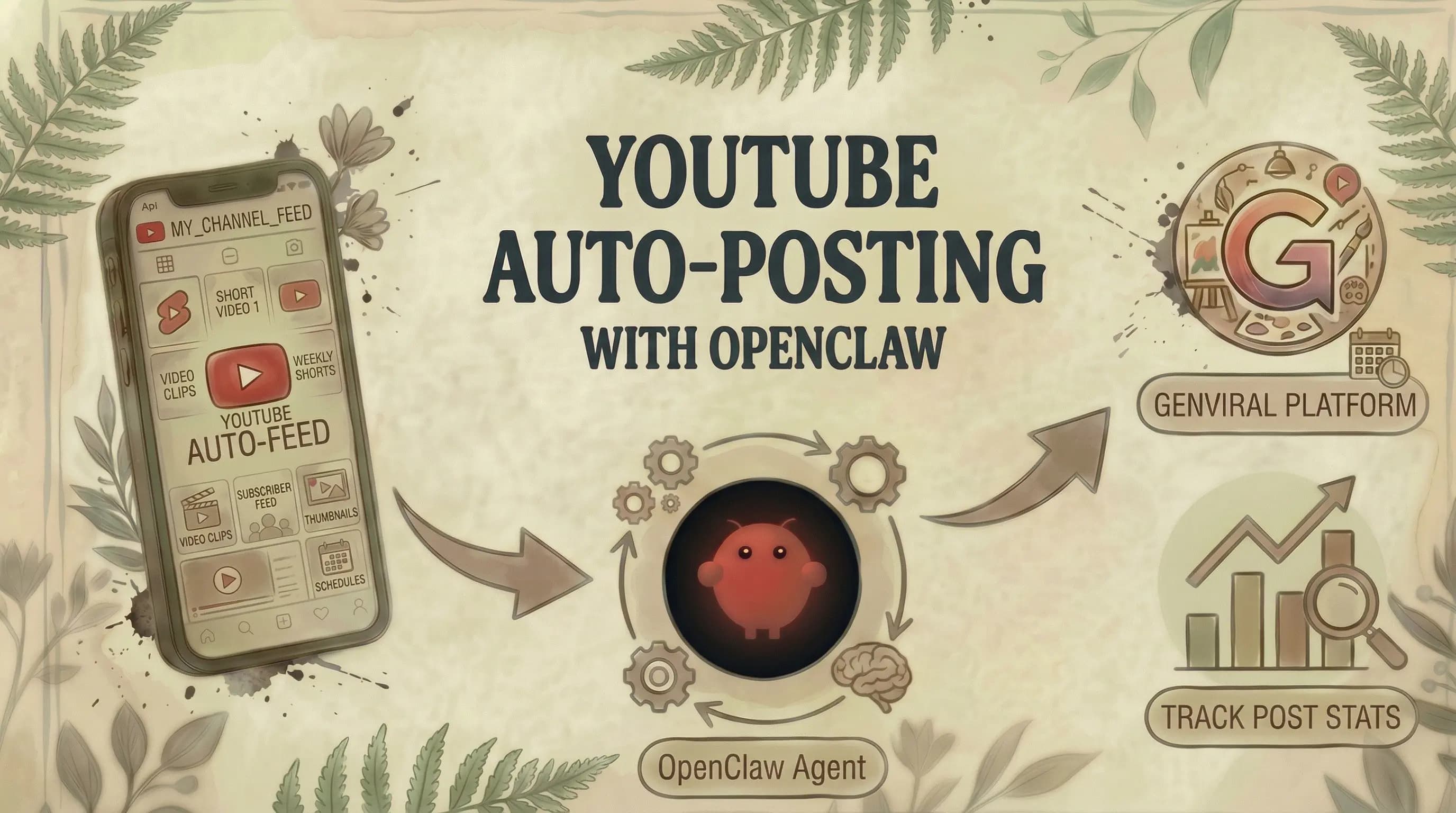
The most common use case we see from our customer base is cross-posting. People already have content creation engines running for TikTok and Instagram - short-form videos, Reels, slideshows - and they want that same content distributed to YouTube Shorts without doing it manually. An OpenClaw agent connected to Genviral handles this automatically.
Beyond cross-posting, the Genviral API also exposes YouTube analytics. This means your agent can pull performance data, analyze which videos are doing well, understand why, and use that information to inform future content decisions. It turns a simple distribution tool into something that gets smarter over time.
What You Need
Three things to feed your OpenClaw agent:
- The GitHub repo - github.com/fdarkaou/genviral-skill (also linked in the Genviral homepage footer)
- The API documentation - docs.genviral.io
- An API key - generate one at genviral.io/api-keys (requires an active subscription)
You can feed all three to your agent in a single message. It works with any chatbot that supports OpenClaw: Telegram, WhatsApp, or whatever you prefer.
Step 1: Organize Your Skill Files
This is the single biggest token saver. When you set up the Genviral skill, create separate MD files for each endpoint category:
genviral-skill/
├── files/
├── folders/
├── studio-ai/
├── posts/
├── slideshows/
├── packs/
├── templates/
└── analytics/
Why does this matter? If your YouTube agent only cross-posts videos, it doesn't need the slideshows endpoint, the templates endpoint, or the packs endpoint loaded on every run. By splitting things up, you avoid loading the entire API docs each time - which saves a lot of tokens and by extension a lot of money.
For a YouTube cross-posting agent, you'll typically need Posts and maybe Analytics. If you're also generating content with AI, add Studio AI. That's it.
Step 2: Connect Your YouTube Account in Genviral
Before your agent can post anything, you need to connect your YouTube account in the Genviral dashboard.
- Go to the Social Posts section
- Click Manage Accounts
- Click Connect and add your YouTube account
- Create a test post manually to verify the connection works
This initial account connection has to happen in Genviral. Once connected, your OpenClaw agent can reference the account by ID when creating posts through the API.
Step 3: Let Your Agent Familiarize Itself
If you already have other automations running (like we have for Pinterest, TikTok, Instagram, and Facebook), tell your agent to familiarize itself with your existing setup first. This way it understands your content style, posting patterns, and how things are structured before building the YouTube flow.
If this is your first automation, just feed the agent the skill files, the API docs, and your API key, then tell it to set up the Genviral skill and configure the YouTube automation.
Step 4: Walk Through the Setup Step by Step
This is a general best practice with AI agents, but especially important here. Instead of trying to configure everything in one prompt, tell your agent:
"I want to post to YouTube automatically. Please ask me step-by-step questions about each part of the setup."
The agent will then ask you about:
- Account selection - which YouTube account to post to
- Content source - cross-posting from other platforms, uploading your own videos, or generating with AI
- Video format - Shorts, long-form, or both
- Title and description format - tone, length, keywords, hashtags
- Scheduling - how often, what times
- Approval flow - publish directly or review each post first
Answer each question, and the agent configures itself accordingly.
Step 5: Review a Sample Post
Before going autonomous, have the agent create at least one sample post in chat so you can review it.
Check:
- Is the video the right format and quality?
- Does the title accurately describe the content?
- Is the description well-written with relevant keywords?
- Are the tags appropriate?
If something looks off, tell the agent what to fix. Once you're satisfied, test the full end-to-end flow by publishing one real post through the agent.
Step 6: Test the End-to-End Flow
Before setting up the cron job, publish one post through the agent to test the full pipeline:
- Agent selects or generates the video content
- Agent creates the post with title, description, and tags
- Post is published to YouTube via the Posts endpoint
- Post appears in your Genviral dashboard calendar tagged with
source: partner_api
If the post goes through successfully and looks good on YouTube, you're ready to automate.
Step 7: Set Up the Cron Job
Once everything checks out, configure your agent to run on a schedule. The agent will:
- Pull or generate the video content
- Write a title, description, and tags
- Publish to YouTube via the Posts endpoint
- Repeat on your chosen schedule
Every automated post shows up in your Genviral dashboard calendar, so you always have a full audit trail of what was posted and when.
Cross-Posting From Other Platforms
This is by far the most common setup we see. If you're already running automations for TikTok, Instagram, or Facebook, adding YouTube is straightforward. Your agent already has the content - it just needs to distribute it to one more platform.
The Genviral API supports multi-account posting, so you can include YouTube alongside your other platforms in the same request. This is especially efficient because you generate the content once and distribute it everywhere. Titles, descriptions, and tags can differ per platform if needed.
Connect Analytics for Smarter Content
One of the more powerful things you can do is connect your YouTube analytics within Genviral (under the Analytics tab). Once connected, your agent has access to performance data and can:
- Analyze which videos are getting the most views and engagement
- Identify patterns in what's working (topics, formats, posting times)
- Adjust future content based on what the data shows
This turns your automation from "post and forget" into something that recursively improves. The agent can tell you what's performing well, why it thinks those videos are working, and use that to inform the next batch of content.
Tips From Our Setup
A few things we've learned:
- Cross-post proven content. If a video is already doing well on TikTok or Instagram, it's a strong candidate for YouTube Shorts. Don't guess - use data.
- Split your skill files. This keeps coming up because it matters that much. Don't load the entire API docs every run. Only give the agent the endpoints it actually needs.
- Use step-by-step confirmation. Have the agent ask you about each part of the setup individually. Don't try to configure everything in one prompt.
- Platform-specific metadata. YouTube titles and descriptions should be optimized for YouTube search, not just copied from TikTok captions. Tell your agent to adjust the metadata per platform.
- Review weekly. Even fully automated, check in once a week. Skim the dashboard, spot-check a few posts, and adjust if needed.
- Start with Shorts. If you're cross-posting short-form content, YouTube Shorts is the natural fit. Long-form YouTube automation is a different game entirely.
Getting Started
Full disclosure - I'm one of the founders of Genviral, so I'm biased. But we built this because our customers kept asking for it, and cross-posting to YouTube is now one of the most common use cases for the API.
To get started:
- Sign up at genviral.io
- Connect your YouTube account under Social Posts
- Generate an API key at genviral.io/api-keys
- Install the Genviral Skill in OpenClaw
- Feed it the API docs
- Walk through the setup step by step
- Validate, then automate
The Genviral API and OpenClaw Skill are available on all paid plans, starting at $29/month on the Creator tier.
If you have any questions, drop them in the comments on the video or reach out through our support chat on the homepage. We're also happy to hop on a call to help set this up - that offer stands for every Genviral customer.
Related Guides
- Claude YouTube Automation: Schedule Shorts with Claude Cowork
- How to Automate YouTube Shorts Posting with Hermes Agent
- How to Use OpenClaw to Automate Your Social Media (Full Guide)
- 15 Best OpenClaw Skills for Social Media Marketing
- How to Automate LinkedIn Posting with OpenClaw and Genviral
- How to Automate Facebook Posting with OpenClaw and Genviral
- How to Automate Instagram Posting with OpenClaw and Genviral
- How to Automate TikTok Posting with OpenClaw and Genviral
- How to Automate Pinterest Posting with OpenClaw and Genviral

Viktor
Occasional writer, sometimes even funny. Also loves to start conmpanies (weird, I know).


