
automation
tutorial
How to Automate Pinterest Posting with OpenClaw

- We currently run 4-5 Pinterest accounts fully automated with OpenClaw agents posting every 4-5 hours - no manual work involved.
- Setup requires three things: the Genviral Skill GitHub repo, the API documentation, and an API key.
- The key to saving tokens (and money) is organizing your skill MD files by endpoint - your Pinterest agent doesn't need the slideshows or templates docs.
- Always validate quality manually first before going fully autonomous. Have the agent create one test post in chat so you can review it.
- Once you're happy with the output, set up a cron job and let it run.
Proof It Works
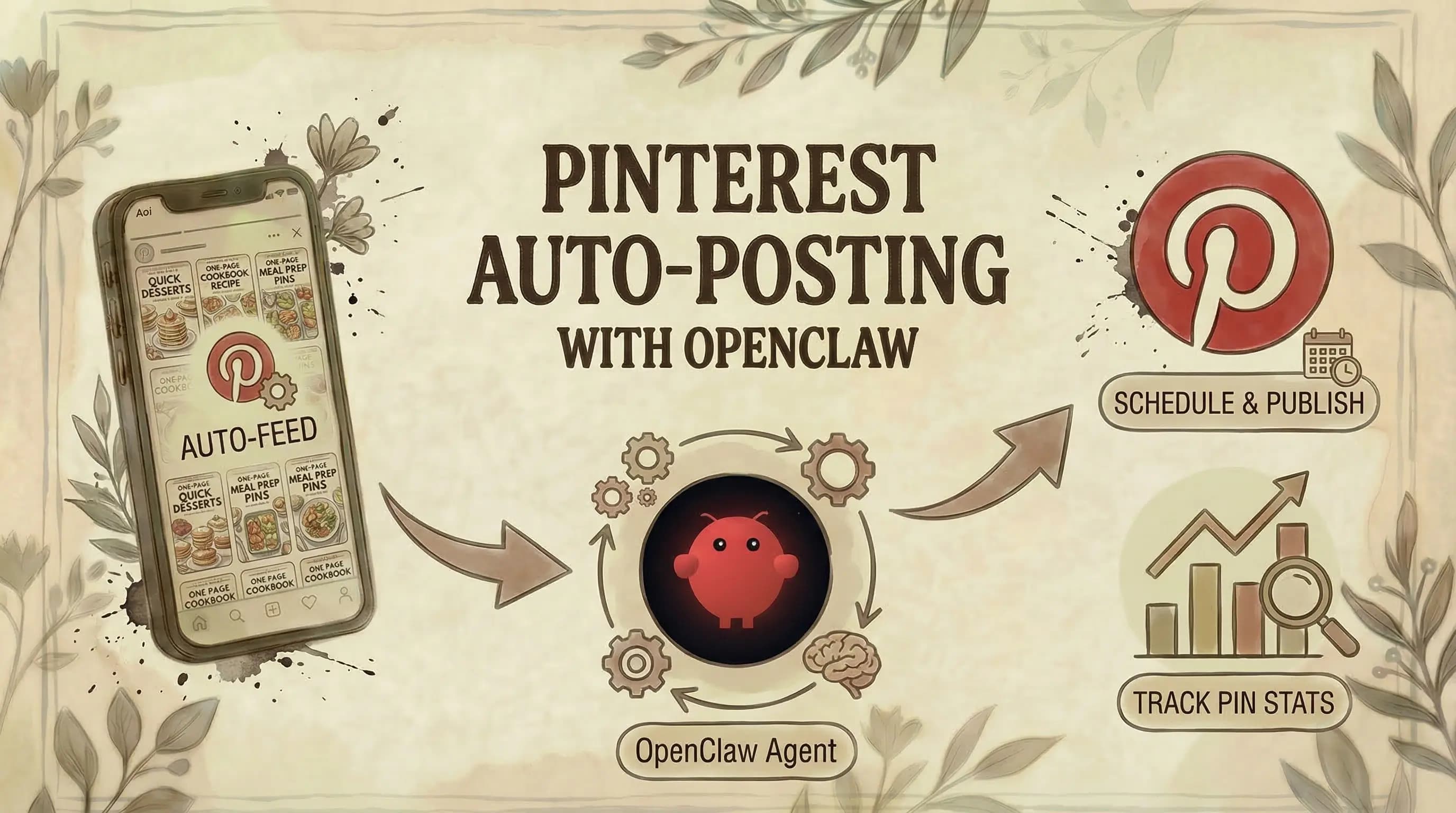
Before we dive into the setup, let me show you the results. One of our accounts is Pantry AI - a cooking app where we publish one-page cookbook recipes. Four steps, different recipes, all generated and posted automatically. The analytics speak for themselves.


And this isn't the only account. We're currently running four to five different Pinterest accounts, each with different visual styles. All fully automated.
What You Need
Three things to feed your OpenClaw agent:
- The GitHub repo - github.com/fdarkaou/genviral-skill (also linked in the Genviral homepage footer)
- The API documentation - docs.genviral.io
- An API key - generate one at genviral.io/api-keys
The API docs cover far more than just Pinterest. You can create TikTok slideshows, generate AI content via the Studio endpoint, find viral videos through the Trends endpoint, analyze performance across platforms, and more. But for this specific setup, we only need a subset.
Step 1: Organize Your Skill Files
This is critical for keeping costs down. When you feed the API docs to your agent, tell it to create separate MD files for each endpoint category. Your file structure should look something like:
genviral-skill/
├── files/
├── folders/
├── studio-ai/
├── posts/
├── slideshows/
├── packs/
├── templates/
└── analytics/
Why does this matter? Your Pinterest agent probably doesn't need the templates endpoint, the packs endpoint, or the slideshow endpoint. It really just needs Posts, Studio AI (for image generation), and maybe Files. By splitting things up, you save a lot of tokens - and by extension, a lot of money.
Step 2: Connect Your Pinterest Account in Genviral
Before your agent can post anything, you need to connect your Pinterest account in the Genviral dashboard.
- Go to the Social Posts section
- Click Manage Accounts
- Click Connect and add your Pinterest account(s)
- Create a test post manually - click New Post, select your Pinterest account, and publish one pin
That last step is important. When you make that first post, Genviral reads all the boards on your account. This means your agent will be able to reference your boards by name when posting.
Step 3: Talk to Your Agent (Step by Step)
Here's where most people go wrong: they try to set everything up in one go. Instead, have a conversation with your agent and walk through it step by step.
Tell your agent something like:
"I want to post to Pinterest automatically. Please ask me step-by-step questions on how we can set this up."
The agent will then ask you:
- Which Pinterest account? (username, account ID)
- Personal account or workspace?
- What image style are you going for?
- What boards should it post to?
- Do you want approval before each post, or fully automated?
Answer each question, and the agent will configure itself accordingly.
Step 4: Prepare Your Reference Images
This is really important and often overlooked. Your agent needs to know what visual style to use when creating content. The way we handle this:
- Create a folder of reference images that represent your desired style
- Tell the agent: "Pick reference images from this folder"
- The AI uses these as style guides when generating new pins via the Studio endpoint
For our Pantry AI account, we had detailed image prompts already dialed in that consistently produce good-looking one-page recipe infographics. The more specific your prompt and references, the more consistent the output.
Step 5: Specify Your Boards
Since you connected your Pinterest account in Step 2, your agent now has access to your board list. Hard-code these into your agent's configuration:
"These are my boards: [Recipe Infographics, Quick Meals, Desserts]. Post to these boards based on the recipe category."
The agent will map content to the right board automatically. This is hard-coded into the agent's logic, so it doesn't need to figure it out each time.
Step 6: Validate Before You Automate
Before you flip the switch to fully autonomous, have the agent create at least one post in the chat so you can review it.
Check:
- Is the image quality good?
- Is the pin description accurate?
- Are the tags relevant?
- Is it posting to the right board?
We're dealing with AI and automation here. You want to make sure there's a baseline level of quality before you remove yourself from the loop. Once you're happy with the output, you can trust it to run on its own.
Step 7: Set Up the Cron Job
Once everything looks good, configure your agent to run on a schedule. For our accounts, we post every 4-5 hours - a new pin is generated and published automatically without any intervention.
The agent uses cron jobs to:
- Generate a new image using the Studio endpoint
- Create a post with the right board, tags, title, and link
- Publish to Pinterest via the Posts endpoint
- Repeat on schedule
Every automated post shows up in your Genviral dashboard calendar tagged with source: partner_api, so you always have a full audit trail.
Pinterest Post Settings
When posting via the API, you can configure Pinterest-specific settings:
| Setting | Description |
|---|---|
board_id | Which board to pin to |
title | Pin title (max 100 characters) |
link | Destination URL when someone clicks the pin |
tags | Up to 30 tags for discovery |
These are passed in the pinterest object when creating a post. Your agent handles this automatically once configured.
Tips From Running 4-5 Accounts
A few things we've learned:
- Do it manually first. Before automating, post manually for a week. Understand what works, what the rhythm feels like, and what your audience responds to.
- Different styles per account. Each of our accounts has a distinct visual identity. Don't use the same prompts across accounts.
- Detailed prompts win. The more specific your image generation prompt, the more consistent the output. Vague prompts = inconsistent quality.
- Reference images are non-negotiable. Always give the AI something to work from. It's the difference between "looks AI-generated" and "looks intentional."
- Review weekly. Even fully automated, check in once a week. Skim the dashboard, spot-check a few pins, and adjust if needed.
Getting Started
Full disclosure - I'm one of the founders of Genviral, so I'm biased. But we built this because we needed it ourselves, and the results on our own accounts speak to how well it works.
To get started:
- Sign up at genviral.io
- Connect your Pinterest account under Social Posts
- Generate an API key at genviral.io/api-keys
- Install the Genviral Skill in OpenClaw
- Feed it the API docs
- Walk through the setup step by step
- Validate, then automate
The Genviral API and OpenClaw Skill are available on all paid plans, starting at $29/month on the Creator tier.
If you have any questions, reach out - happy to help.
Related Guides
- How to Automate Pinterest Posting with Hermes Agent
- How to Use OpenClaw to Automate Your Social Media (Full Guide)
- 15 Best OpenClaw Skills for Social Media Marketing
- How to Automate LinkedIn Posting with OpenClaw and Genviral
- How to Automate Facebook Posting with OpenClaw and Genviral
- How to Automate Instagram Posting with OpenClaw and Genviral
- How to Automate TikTok Posting with OpenClaw and Genviral
- How to Automate YouTube Posting with OpenClaw and Genviral
- Pinterest Posting Strategy
- Pinterest Tips and Tricks
- How to Make a Board on Pinterest Private
- How to Make Money with Pinterest

Viktor
Occasional writer, sometimes even funny. Also loves to start conmpanies (weird, I know).


