
youtube
automation
hermes-agent
How to Automate YouTube Shorts Posting with Hermes Agent

- Hermes Agent works well for YouTube Shorts social media automation because it can confirm account access, follow a structured posting workflow, and keep recurring uploads organized without constant supervision.
- Before you do anything else, you need an active Genviral subscription, your API key, your connected social account, and the Genviral API docs that Hermes will use.
- You can run this workflow with pre-made shorts, shared content folders, Google Drive or Dropbox assets, Studio AI-generated media, or a broader cross-posting pipeline. The transcript uses pre-edited CapCut videos as the simplest example, not the only supported path.
- One of the most important parts of the setup is the internal logging system so Hermes knows which videos have already been posted and does not recycle the same assets too early.
- Always have Hermes send posting confirmations back into your main channel so you can catch failed uploads, missing titles, weak descriptions, or account issues quickly.
YouTube Shorts is one of the most practical places to use Hermes Agent for social media automation because the workflow is usually predictable: choose a video, apply the right metadata, publish on schedule, and keep the queue moving.
If you already have short-form content being created for TikTok, Instagram, Facebook, or another channel, Hermes can become the operator that takes those assets and distributes them to YouTube Shorts consistently. In this setup, Hermes is the orchestration layer, while Genviral is the backend that handles account connection and publishing.
What This YouTube Automation Actually Does
The concrete example in the transcript is a YouTube Shorts workflow where:
- ready-made short videos are stored in a shared media folder
- Hermes checks the connected YouTube account
- it chooses the next available unused video
- it applies the title and description rules
- it publishes the short on schedule
- it sends a confirmation back into the main channel
If you want to see the kind of account this workflow is meant to support, you can look at the example YouTube channel.
That example is useful because it shows the real value of Hermes: you do not have to make the agent generate every asset from scratch. You can also let your existing content workflow produce the videos, then let Hermes handle the repetitive distribution layer.
Other YouTube Automations You Can Run with Hermes
Do not read this guide as "Hermes only works for pre-edited CapCut videos." Hermes can also be used to automate:
- YouTube Shorts from existing video folders
- cross-posting the same short-form video across several platforms
- media pulled from Google Drive, Dropbox, or another external source
- AI-generated media using Studio AI
- analytics-informed iteration where Hermes improves future posting decisions
So the example here is intentionally simple, but the setup principles are broader than the example itself.
Why Hermes Agent Makes Sense for YouTube Shorts
YouTube automations usually fail in one of four places:
- the account is not actually connected
- the title and description quality are inconsistent
- the same video gets reposted by mistake
- the workflow appears healthy until someone notices missing uploads
Hermes is useful because it can:
- verify that the account exists and is ready to use
- follow explicit rules for titles and descriptions
- maintain an internal log of posted assets
- send confirmations back to the team after every run
That is a much better fit than treating YouTube as a blind scheduler with no visibility.
What You Need
Before you ask Hermes to automate YouTube Shorts posting, make sure you have:
- Hermes Agent already installed and running in your preferred interface
- an active Genviral subscription
- an API key from API Keys
- your YouTube account connected in Social Posts
- the Genviral API docs so Hermes knows what endpoints it can use
In this workflow, Genviral is the natural backend because it gives Hermes one way to authenticate, access connected accounts, read folders and files when relevant, generate content when needed, publish the short, and later use analytics for recursive improvement.
Step 1: Choose Where Hermes Will Run
The first decision is where the automation should live.
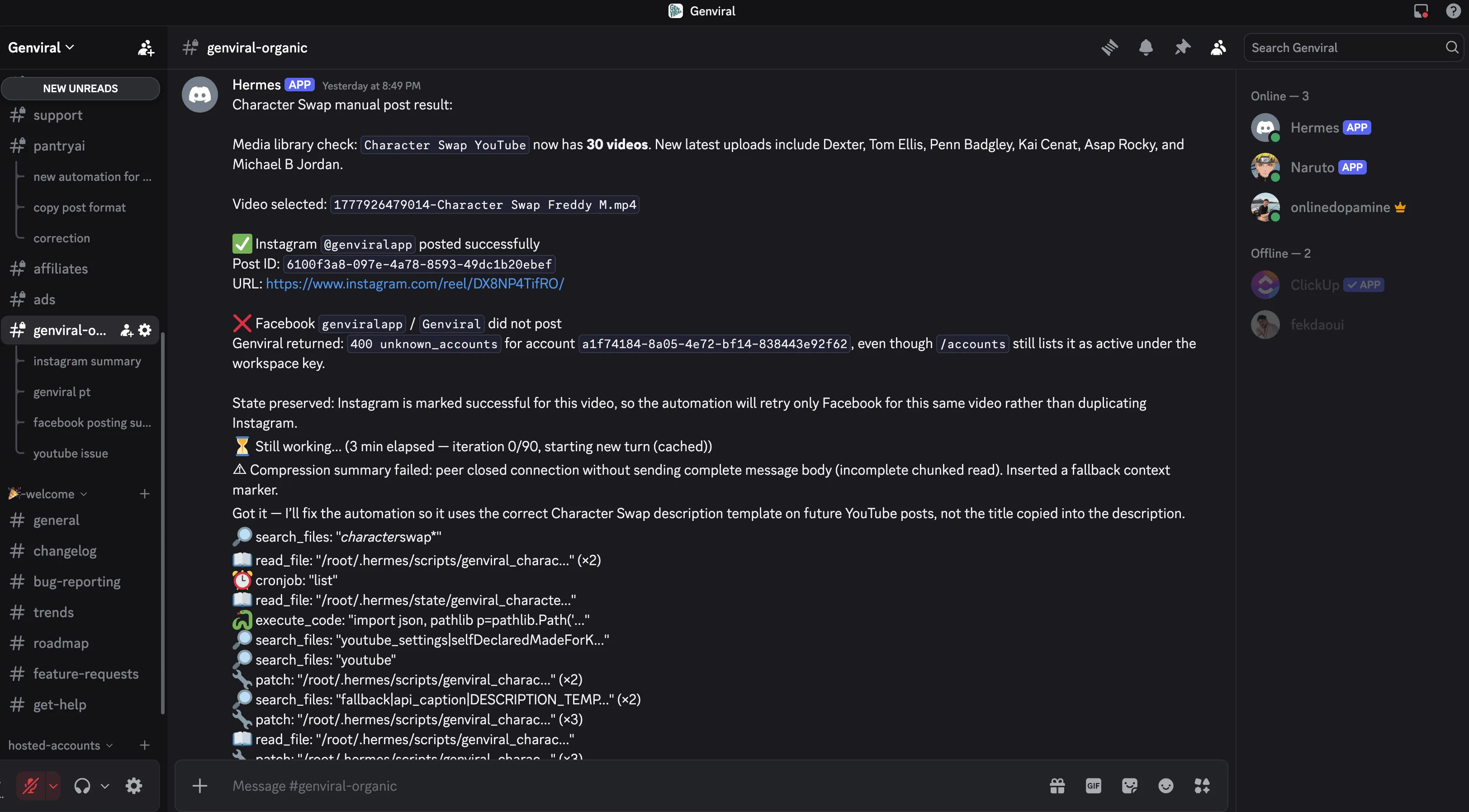
Discord works well if you already monitor multiple automations there, but Telegram, Microsoft Teams, WhatsApp, and similar interfaces can also work. The important part is that Hermes already has a functioning home before you start the YouTube setup.
This guide assumes Hermes itself is already installed and working.
Step 2: Feed Hermes the API Docs and API Key
Once Hermes is running, you need to give it the API surface it will use.
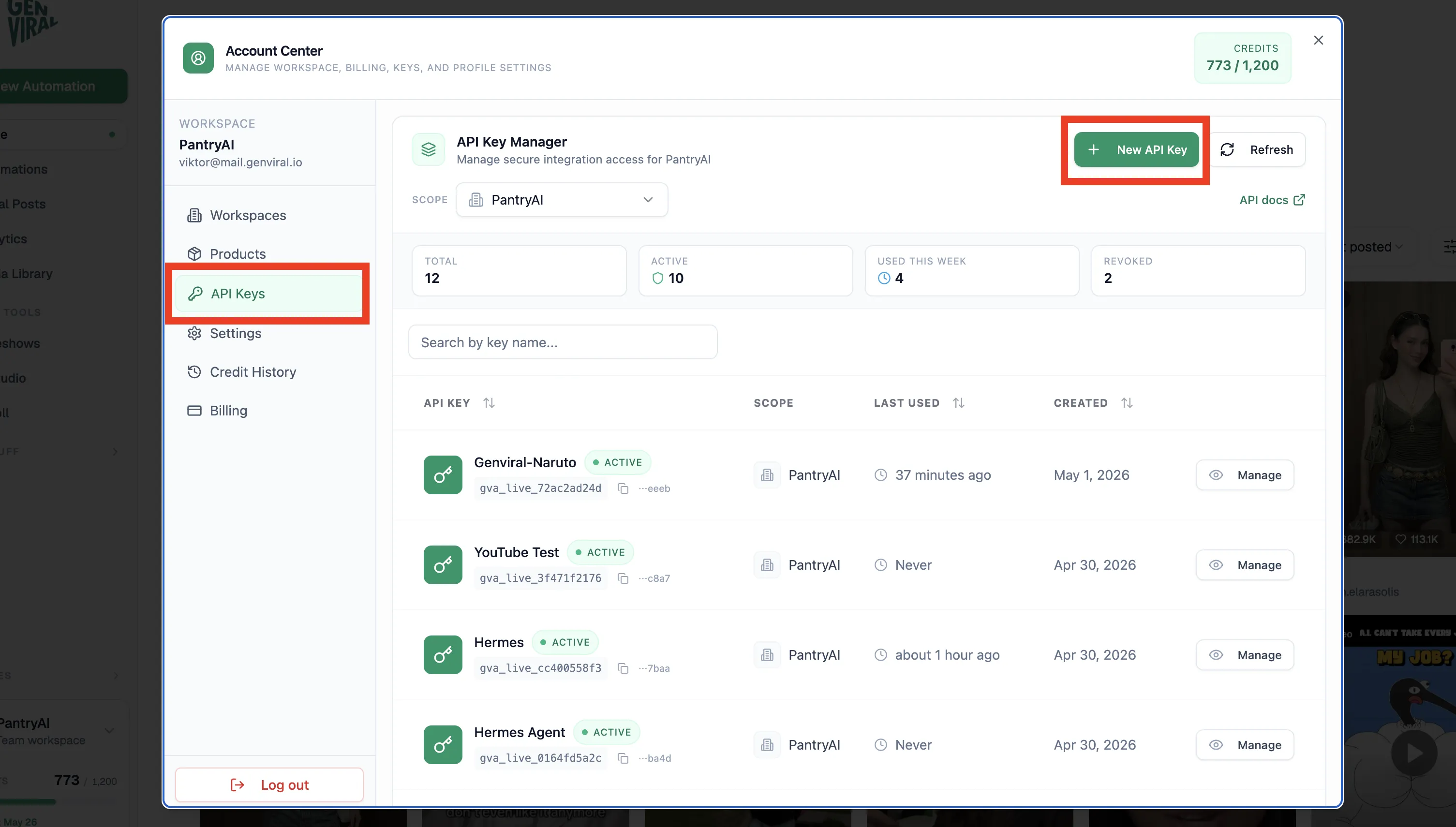
In practice, that means:
- your API key so Hermes can authenticate
- the API docs so Hermes understands the available endpoints
For this type of YouTube automation, the most relevant endpoints are usually:
- Accounts
- Files
- Folders
- Studio AI if you want generated content
- Posts
- Analytics if you want Hermes to improve decisions over time
You do not need every endpoint for every workflow. If you are bringing your own shorts from another source, some endpoints may be irrelevant.
Step 3: Connect the YouTube Account First
Before Hermes can publish anything, your YouTube account needs to be connected manually.
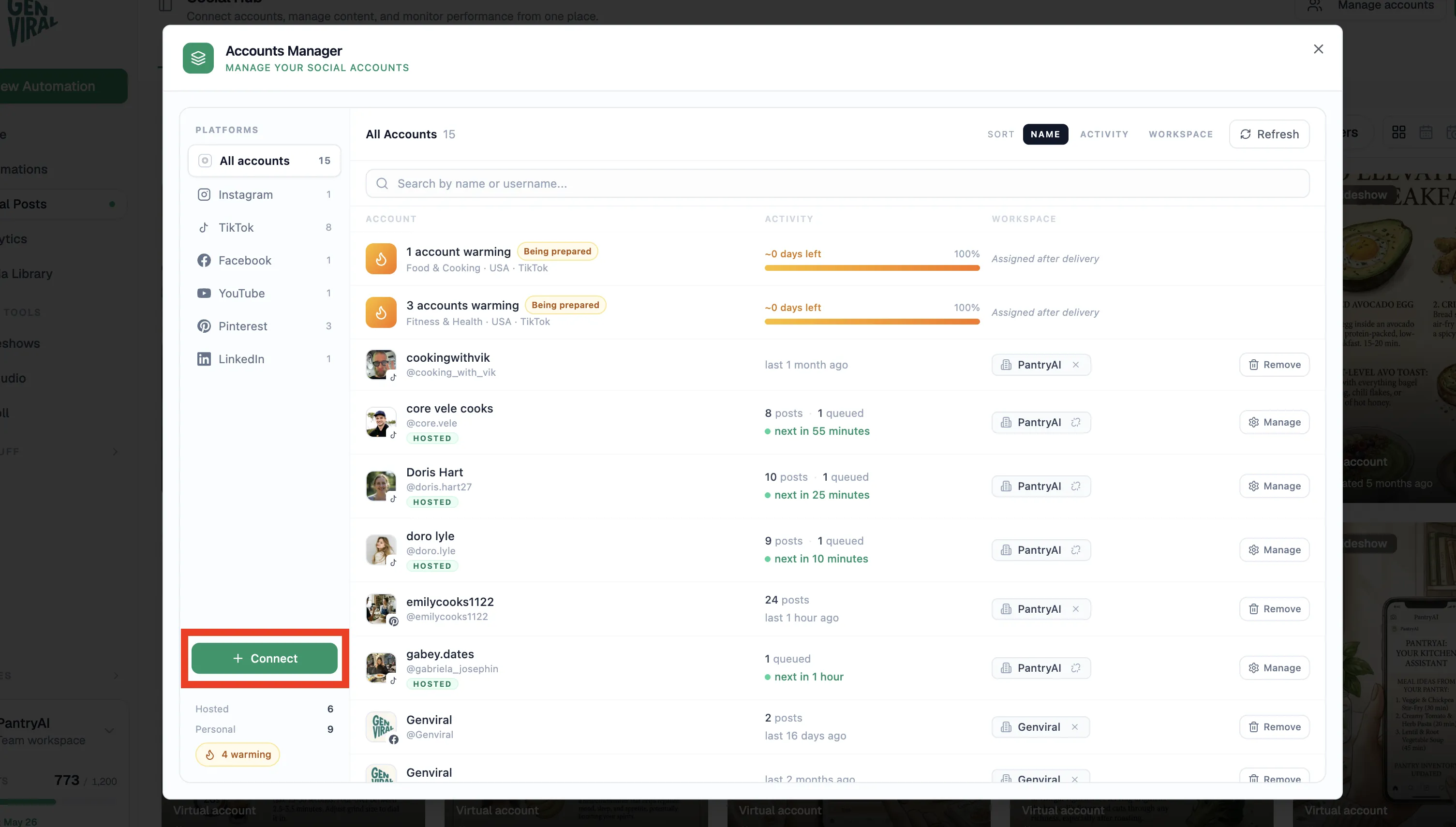
The basic flow is:
- open Social Posts
- go to Manage Accounts
- connect your YouTube account
- make Hermes confirm it can see the account
That final confirmation is important. Before you start configuring cadence, metadata, or content sources, ask Hermes directly whether it can see the account you just connected.
That early verification saves a lot of debugging later.
Step 4: Decide What Content Source You Want to Use
This is where the workflow branches.
For YouTube Shorts, you can let Hermes work with:
- videos stored in Genviral folders
- videos stored in another system like Google Drive or Dropbox
- content generated through Studio AI
- shared assets that are already being posted to Instagram, Facebook, TikTok, or other platforms
The transcript uses a shared media folder because the same videos are also being published elsewhere. That is a strong place to start because it keeps the workflow simple and lets you reuse the same assets across multiple social channels.
Step 5: Use a Shared Media Folder if You Already Have One
If your videos are already being created elsewhere, I recommend starting with a shared folder-based workflow.
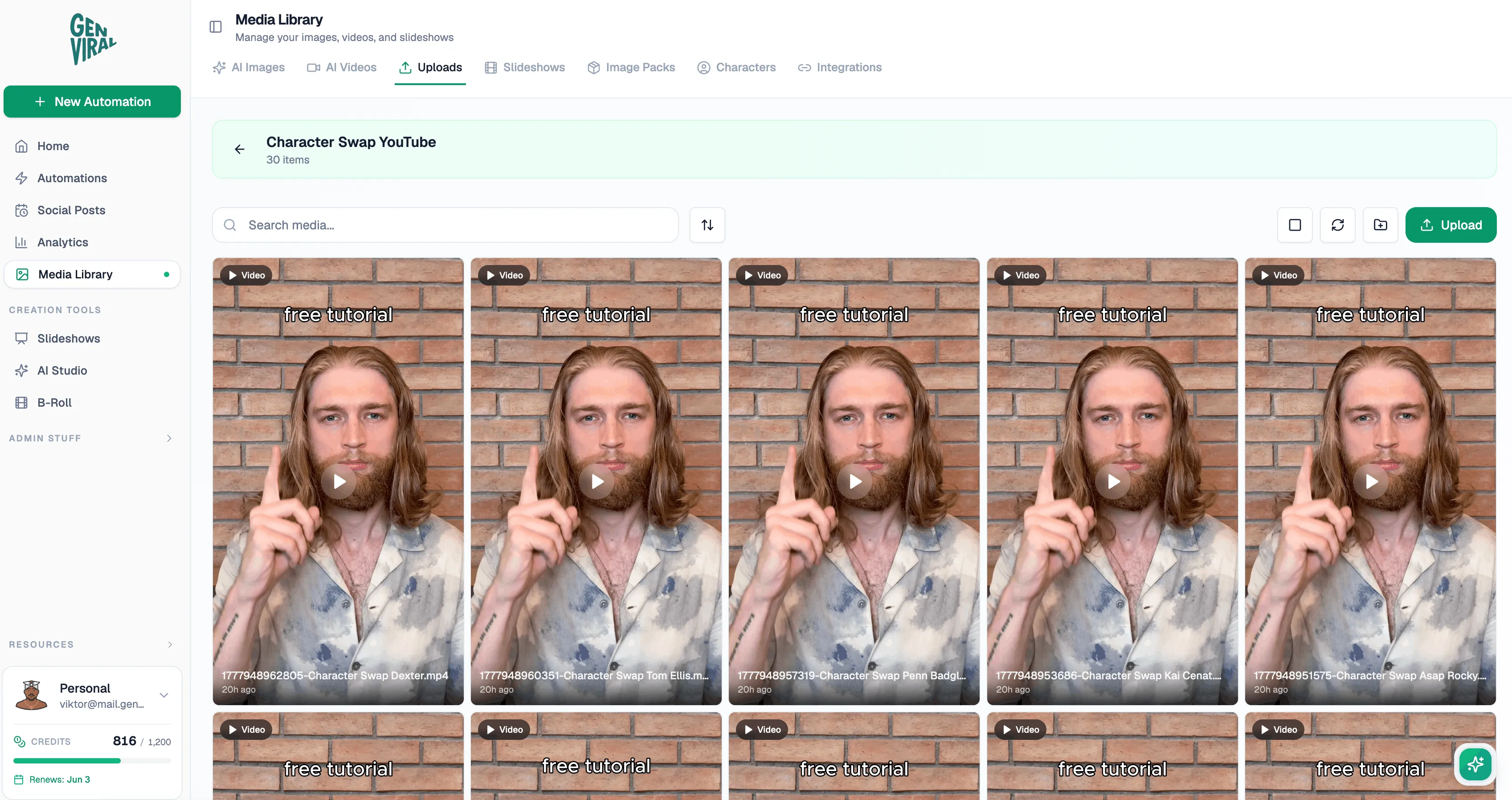
That means:
- prepare the videos externally
- upload them into a dedicated YouTube folder
- let Hermes pick from that pool
This is especially useful when:
- your videos are edited by a human
- the same shorts are being cross-posted elsewhere
- you want a stable asset inventory before adding generation on top
Hermes does not need to edit the videos. It just needs to know where they are, how to choose them, and how to post them correctly.
Step 6: Define the Metadata Rules Clearly
One of the practical problems called out in the transcript is that titles and captions were not always strong enough until the rules were refined.
So when you set up Hermes, be explicit about:
- the title format
- the description structure
- any hashtags you want included
- any copyright or source restrictions you need respected
- whether you need a title image or thumbnail logic
This matters because Shorts publishing is not only about uploading the file. The surrounding metadata has a real impact on whether the workflow is actually useful.
Step 7: Keep an Internal Log of Posted Videos
This is one of the most important parts of the whole setup.
Hermes should keep an internal log of:
- what videos are available
- what videos have already been published
- what the most recent posts were
That way Hermes does not immediately recycle the same asset again and again.
If you keep adding new videos into the folder over time, the system can run continuously without running out of content. If the folder is eventually exhausted, then you can decide whether reposting is acceptable.
This is exactly how you should think about YouTube Shorts inventory.
Step 8: Send Confirmations After Every Upload
When Hermes finishes a post, it should send a confirmation back into your main channel.
That confirmation should tell you:
- which video was posted
- whether the upload succeeded
- what the final title and description looked like
- whether anything failed
This is critical because YouTube automations can fail quietly if you do not build an explicit confirmation loop. If a title is weak, a description is missing, or the account has an issue, you want to know right away instead of discovering the problem after several missed or poor-quality uploads.
Step 9: Start with One or Two Shorts Per Day
The transcript recommends starting with a moderate cadence first, and that is the right call.
For most YouTube Shorts automations, begin with:
- one short per day, or
- two shorts per day
Then watch the results. If the workflow is stable and the content performs well, you can scale up. But start with a cadence you can monitor comfortably.
The Biggest Lesson From This Workflow
Use YouTube manually first.
Before automating Shorts, spend time posting manually so you understand:
- what a good Short looks like in your niche
- how your titles should read
- what description style works
- what content formats perform best
- what copyright issues you need to avoid
Once you understand that workflow end to end, Hermes becomes a multiplier. Before that, it mostly automates uncertainty.
Getting Started
If you want to replicate the YouTube Shorts workflow from the video:
- set up Hermes in the interface where you want to manage the automation
- make sure you have an active Genviral subscription
- connect your YouTube account in Social Posts
- create your API key
- feed Hermes the API docs and credentials
- decide whether the automation will use folders, external storage, Studio AI, or another asset source
- define your title and description rules
- tell Hermes to keep an internal log of posted videos
- send one test post first if you want to validate the metadata
- only then enable the recurring YouTube Shorts automation
If you need the execution layer for that workflow, start with Genviral, then let Hermes operate on top of it.
Related Guides
- Claude YouTube Automation: Schedule Shorts with Claude Cowork
- How to Automate YouTube Posting with OpenClaw and Genviral
- Hermes Agent Social Media: How to Automate Posting
- How to Automate TikTok Posting with Hermes Agent
- How to Automate Instagram Posting with Hermes Agent
- How to Use OpenClaw to Automate Your Social Media
- Best Social Media APIs

Fekri
Builder, founder, father



