social-media
automation
tutorial
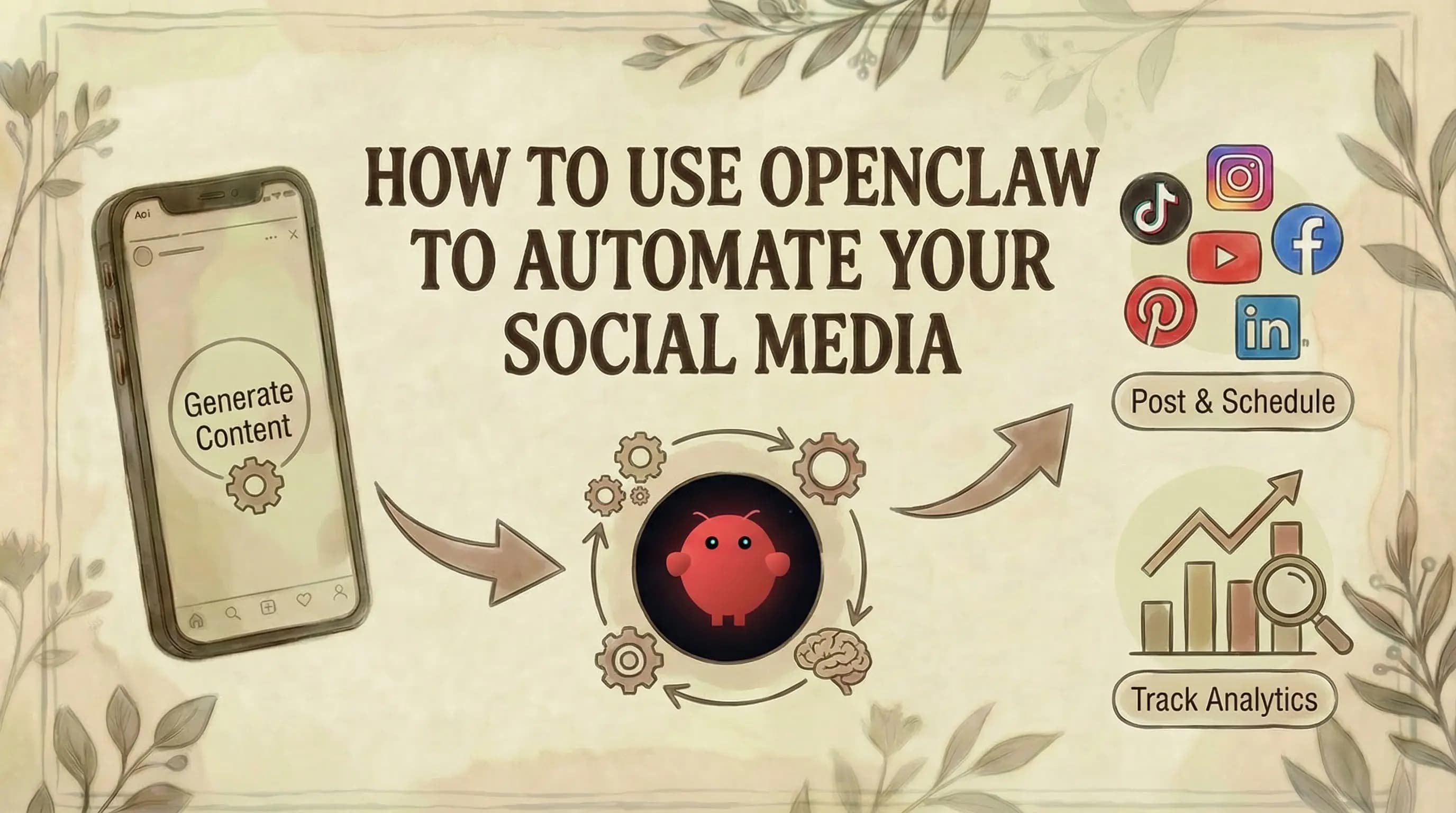
How to Use OpenClaw to Automate Your Social Media (Full Guide)

- OpenClaw can run your entire social media pipeline without manual work - from AI-generated slideshows to multi-platform posting, performance analytics, and self-improving content strategy.
- The Genviral Partner API is the posting and content layer: 42+ commands covering accounts, slideshows, posts, image packs, templates, and analytics across TikTok, Instagram, YouTube, Facebook, Pinterest, and LinkedIn.
- Setup takes 4 steps: get an API key from genviral.io/api-keys, install the Genviral Skill for OpenClaw, connect your social accounts, and generate your first slideshow.
- The feedback loop is self-improving: OpenClaw reads analytics data after each posting cycle and adjusts hooks, formats, and timing for the next batch.
- Every API-generated post shows up in your Genviral dashboard calendar with full audit trail - source-tagged so you know what was automated.
OpenClaw is getting good enough to handle full social media workflows end to end. The tasks are well-defined, the inputs and outputs are predictable, and the volume of repetitive work is high enough that automation pays off fast.
This guide walks through how to connect OpenClaw to a social media API so it can handle content creation, scheduling, posting, and performance review on its own. We'll use the Genviral API as the posting and content layer - the same setup we used to post our first OpenClaw-generated slideshow to our TikTok, which hit 25,000 views.
Quick Facts
What you need:
- OpenClaw set up on your device
- A Genviral account for the posting API and content tools
- Social accounts connected to your Genviral workspace
- An API key from the Genviral dashboard
How the Setup Works
For OpenClaw to run a social media pipeline, it needs three things: a way to create content, a way to distribute it, and a way to read back performance data so it can improve over time.
The Genviral Partner API covers all three. It exposes the same pipeline the Genviral dashboard uses internally - so anything you can do manually in the product, OpenClaw can do programmatically. Posts, analytics, retries, and audit logs all stay in sync between the API and the dashboard.
The Genviral Skill for OpenClaw is a pre-built wrapper around that API with 42+ commands organized into six categories: accounts, slideshows, posts, image packs, templates, and analytics. Installing it gives OpenClaw a full vocabulary for the entire content lifecycle without writing any integration code.
Step 1: Get Your API Key
Keys are single-scope credentials - either workspace-scoped or personal-scoped. For most setups, workspace-scoped is the right choice: it ties the key to a specific team workspace and gives OpenClaw access to all accounts, credits, and post history within that workspace. Personal keys work for solo use without a workspace.
- Sign in and go to genviral.io/api-keys
- Select the key scope (Workspace for team usage, Personal for solo)
- Generate a new key
- Store it somewhere safe - it's only shown once
Keys follow the format gva_live_x1y2z3.abcd1234 and go in the Authorization header:
Authorization: Bearer gva_live_x1y2z3.abcd1234
The scope boundary is enforced on every request - a workspace key can only see and act on resources within that workspace. There's no fallback to unscoped data, which matters if you're managing multiple clients or projects.
Step 2: Install the Skill
Add the Genviral Skill to OpenClaw and pass it your API key. That's the full setup. The skill connects to https://www.genviral.io/api/partner/v1 and OpenClaw can start issuing commands immediately.
If you prefer to work directly with the API - for example, to integrate into your own tooling or scripts - the full API reference and a Postman collection are available.
Step 3: Connect Your Social Accounts
Before OpenClaw can post anything, it needs to know which accounts are available. Run:
$genviral accounts list
This returns both hosted creator accounts and any accounts you've connected directly - TikTok, Instagram, YouTube, Facebook, Pinterest, and LinkedIn. OpenClaw can cache these IDs and reference them in every subsequent post command.
Step 4: Generate a Slideshow
The core content format is the slideshow - a carousel or short-form video that OpenClaw generates from a prompt, a set of background images, or a saved template.
Generate one:
$genviral slideshow generate
Render it to produce the final output:
$genviral slideshow render sl_8x2k
Have OpenClaw review it before publishing:
$genviral slideshow review sl_8x2k
Update any element if needed:
$genviral slideshow update sl_8x2k
A few things worth knowing here. OpenClaw can generate slideshows from whatever images you give it - your own photos, uploaded brand assets, or image packs you've organized in advance. Using authentic, varied images matters: TikTok's duplicate content filters are sensitive, so the more distinct your visuals, the better the reach. A good pattern is to have OpenClaw analyze each uploaded image and assign it a descriptive name so the library stays searchable as it grows.
Media limits to keep in mind:
- Slideshows support 1–35 images (JPG/JPEG/PNG), each under 5MB
- ~9:16 aspect ratio is recommended for TikTok and Instagram
- Videos must be MP4/MOV/M4V/AVI, under 100MB, and between 15–60 seconds
- Captions are capped at 500 characters across all platforms
Step 5: Post to Your Platforms
Publishing is a single command. Have OpenClaw post to everything at once:
$genviral post create --accounts all
Or pick specific platforms:
$genviral post create --accounts tt,ig
You can also add a scheduled_at timestamp to batch content in advance - useful if you want OpenClaw to generate a week's worth of posts in one session and drip them out on a schedule.
If a post fails on one platform, OpenClaw can retry it without affecting the others:
$genviral post retry
Every post OpenClaw makes through the API shows up immediately in the dashboard calendar with metadata.source = "partner_api", so you have a full audit trail even when it's running autonomously.
TikTok: Draft mode vs. direct post
TikTok gives you two publish modes that behave very differently. DIRECT_POST publishes immediately. MEDIA_UPLOAD uploads the slideshow to your TikTok inbox as a draft - you then open TikTok, add a trending sound, and publish manually.
For photo carousels specifically, sound selection has an outsized effect on reach, so the typical pattern is MEDIA_UPLOAD for TikTok and DIRECT_POST for every other platform. The skill handles this via flags, but if you're calling the raw API directly, you set it in the tiktok object:
{
  "tiktok": {
    "post_mode": "MEDIA_UPLOAD",
    "privacy_level": "SELF_ONLY"
  }
}
One important constraint: music URLs (for adding trending sounds programmatically) are only supported when all accounts in the request are TikTok accounts. Including any Instagram account in the same request will block the music field, so target platforms separately if you need platform-specific music settings.
Tracking posts with external_id
The API accepts an optional external_id field on every post request - a correlation ID you define. If OpenClaw is running multiple campaigns or you want to map posts back to your own tracking system, set this to something meaningful (e.g., campaign-spring-2026-day3). It's returned in the post response and stored alongside the post in the dashboard.
Step 6: Read Analytics and Adjust
After posts go live, OpenClaw can pull performance data:
$genviral analytics summary
This returns views, likes, and engagement rates across all platforms. For post-level detail:
$genviral analytics posts
You can also set targets for OpenClaw to track over time:
$genviral analytics target add
The useful part is that OpenClaw can actually interpret this data rather than just log it. It can compare hook styles, content formats, and posting times across posts, identify what's correlating with higher engagement, and adjust its approach for the next batch. This is what makes the loop self-improving - each cycle informs the next one.
Analytics coverage by platform:
| Platform | Posting | Analytics |
|---|---|---|
| TikTok | Yes | Yes |
| Yes | Yes | |
| YouTube | Yes | Yes |
| Yes | — | |
| Yes | — | |
| Yes | — |
Analytics (views, likes, comments, shares, engagement rate) are currently available for TikTok, Instagram, and YouTube. Facebook, Pinterest, and LinkedIn support posting but don't return analytics data yet. For the feedback loop to work automatically, it's worth having at least one of the analytics-enabled platforms in your mix.
The Full Pipeline
Once everything is connected, OpenClaw runs a repeating cycle:
- Generate - create slideshows from prompts, image packs, or templates
- Post - distribute to all connected platforms on a schedule
- Analyze - pull views, likes, engagement rates, follower growth
- Improve - adjust hooks, formats, and timing based on what performed
- Repeat
You check in weekly, review what OpenClaw flagged, and the system handles the rest. The practical result is consistent posting across six platforms without a content team behind it.
Keeping Posts On-Brand
Two features help OpenClaw stay consistent at scale. Image packs let you group reusable visual assets that OpenClaw pulls from when generating slideshows:
$genviral pack create
$genviral pack list
Templates let you save a winning slideshow format so OpenClaw can reuse it with fresh content:
$genviral template create
$genviral template list
Between these two, OpenClaw produces content that looks intentional and consistent rather than generated on the fly - which matters both for brand perception and for TikTok and Instagram's content quality signals.
Common Questions
Can OpenClaw run fully without human input? Yes. Once connected, OpenClaw handles generation, posting, and analytics review on its own. Most people check in once a week to review performance and update the brief if needed.
What about media uploads? You can upload images and video directly to the Genviral CDN from OpenClaw's chat interface - or from WhatsApp, Telegram, wherever you're working. The skill handles the upload and returns a URL OpenClaw can reference in future slideshow commands.
Which platforms are supported? TikTok, Instagram, YouTube, Facebook, Pinterest, and LinkedIn.
What if a post fails?
$genviral post retry lets OpenClaw retry failed deliveries individually without touching successful ones.
Do I need the skill, or can OpenClaw use the API directly? Either works. The skill is faster to set up and better suited for OpenClaw's conversational workflow. The raw API is better if you're building a custom integration or want fine-grained control over request logic.
Getting Started
The Genviral API and OpenClaw Skill are available on all paid Genviral plans, starting at $29/month on the Creator tier.
- Genviral Skill for OpenClaw on GitHub
- API Documentation
- Postman Collection
- API Keys
- Genviral dashboard
We built this workflow ourselves and posted our first OpenClaw-generated slideshow to our TikTok - it hit 25,000 views. Genviral is the platform behind the posting and content layer described in this guide.

Viktor
Occasional writer, sometimes even funny. Also loves to start conmpanies (weird, I know).